In this post, we will explore how to pair your TradesViz account with Kalshi for automatic sync of your event contract trades.
Plan requirement: Event contracts are a Pro and Platinum asset type, the same as crypto. Free accounts import stock trades only, so you need a Pro or Platinum plan or the free 7 day trial to connect Kalshi.
Once you select your trading account and broker as Kalshi in the trade auto-import page, a popup box will appear when you click on the "Connect account" button.
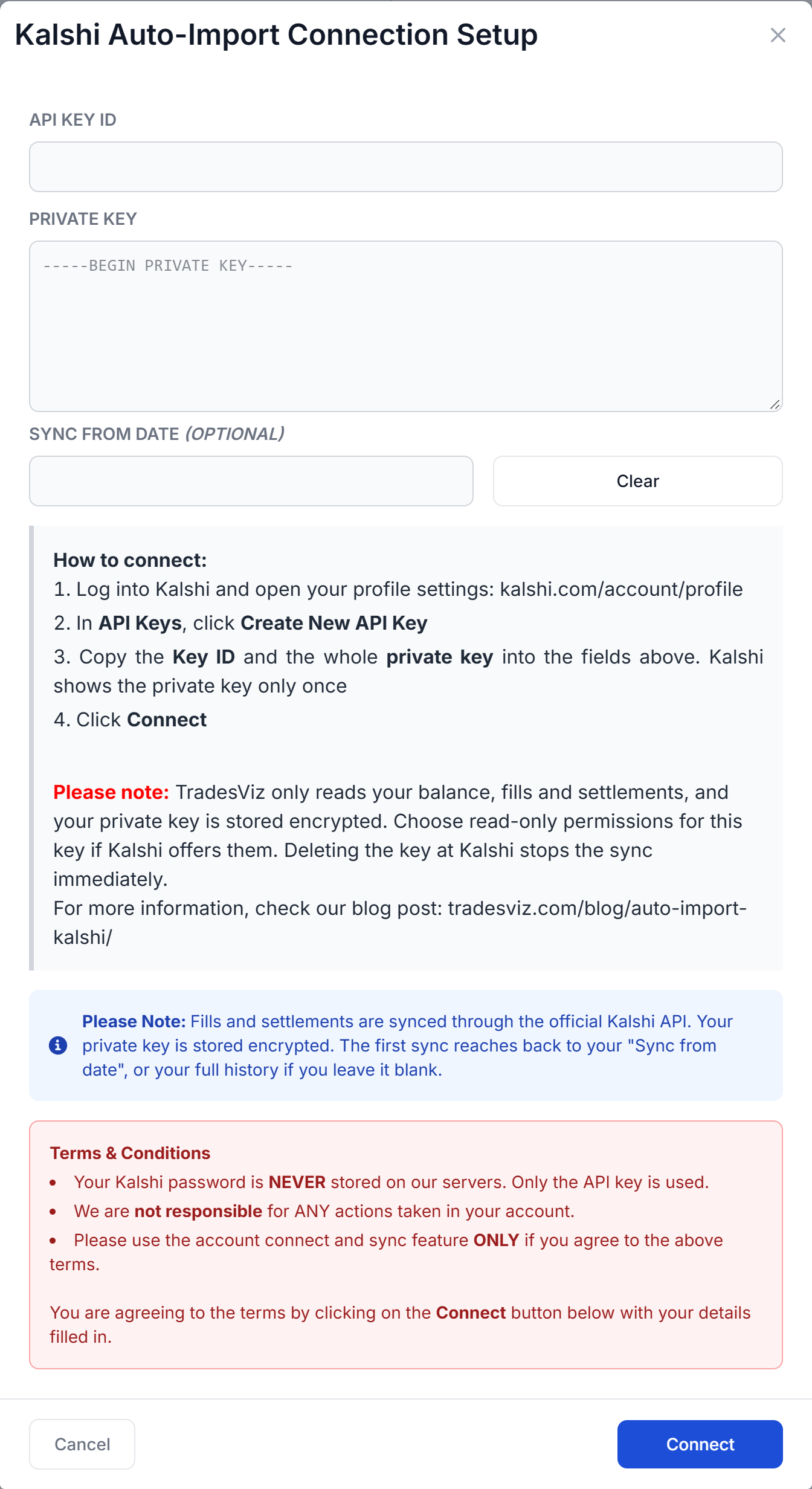
The connection uses a Kalshi API key, which you create in your Kalshi account. Here are the steps you need to follow:
- Log into Kalshi and open your profile settings at kalshi.com/account/profile.
- In the API Keys section, click Create New API Key. The default Ed25519 key type works, and so does RSA.
- Copy the Key ID and save the private key file that Kalshi gives you. Kalshi shows the private key only once, so you cannot get it back after closing that page.
- Paste the Key ID into API Key ID in the TradesViz popup.
- Open the private key file and paste all of it into Private Key, including the
-----BEGINand-----ENDlines. - Optionally set a Sync from date. Leave it blank to import your full Kalshi history.
- Click Connect.
For full details on generating keys, please refer to Kalshi's official documentation: docs.kalshi.com/getting_started/api_keys.
- Your Kalshi password is NEVER stored on our servers. Only the API key is used.
- We are not responsible for ANY actions taken in your account.
- Please use the account connect and sync feature ONLY if you agree to the above terms.
Once connected, TradesViz starts your first sync from the connections list, and you can click on sync there at any time. All our syncs run once per day automatically.
Note: How much history is imported - The first sync reaches back to your "Sync from date", or your full Kalshi history if you left it blank. Every sync after that rechecks the last 14 days and skips anything already imported.
Note: If you already imported Kalshi files - Choose a "Sync from date" after your last imported trade, or connect a separate trading account, so file imports and API sync do not overlap.
Note: Older settlements - Kalshi does not list every older settlement through its API. When a market you hold has finalized without a settlement record, TradesViz closes it from Kalshi's public market result, so old positions do not stay open.
Note: About API key security - Kalshi's API key documentation does not describe a read-only option, so treat this key as having the same access as your Kalshi account. TradesViz only uses it to read your balance, fills and settlements. We never place, change or cancel orders, and your private key is stored encrypted. Deleting the key at Kalshi stops the sync immediately.
Supported instruments: Kalshi event contracts are supported, including Yes/No and scalar markets. Each market is one trade, shown as YES or NO, and it closes at the settlement payout or at the price you exited. Kalshi's fees are imported with each fill and settlement. Deposits and withdrawals are not imported.
If you trade Kalshi markets through Coinbase, those fills come in through your Coinbase connection instead, using its Import prediction market trades? option.
Reviewing your Kalshi trades
Returns on event contracts are measured on the amount you staked, so a total loss is -100% before fees. Once your trades are in, a Prediction Markets tab appears in your dashboard menu with:
- Calibration and Brier score: how often the prices you paid matched what actually happened.
- Return by entry price and by market: the price ranges and market series where you make or lose money.
- Breakdowns: category, Yes vs No, entry order type, and positions you held to settlement vs exited early.
- Open positions: your live markets with entry, last price and unrealized P&L.
In Trade Explore, each trade shows the Kalshi price chart with your fills marked, your entry as American and decimal odds, and the closing price for events with a scheduled start.
That's it! Please let us know if you have any questions or concerns about the Kalshi auto-sync integration by sending us an email at [email protected].