This guide explains how to connect moomoo to TradesViz and import supported US stock and option trades automatically. You sign in on moomoo, authorize read access and select the account to sync. You do not need to install OpenD, run a server or keep your computer on for scheduled syncs.
Availability: These steps apply when moomoo is available in your TradesViz auto-import broker list. If it is not listed, you can continue using moomoo file imports or contact support. Account eligibility and available history depend on moomoo.
1. Choose your account, start date and fee settings
- Open the Import/Export page and select Auto import.
- Select the TradesViz trading account that should receive the trades.
- Choose moomoo (US stocks & options) in the broker list and click Connect account.
- Enter an optional Sync from date in YYYY-MM-DD format. The date uses UTC. Leaving it blank sets the starting point to 90 days ago; that starting date is saved for future syncs.
- Choose how to handle commissions and fees, then click Continue to moomoo.
Choose a date that includes the opening executions for the trades you want to journal. If you already imported a moomoo CSV or spreadsheet, choose a date after those executions to avoid overlapping file imports with API sync.
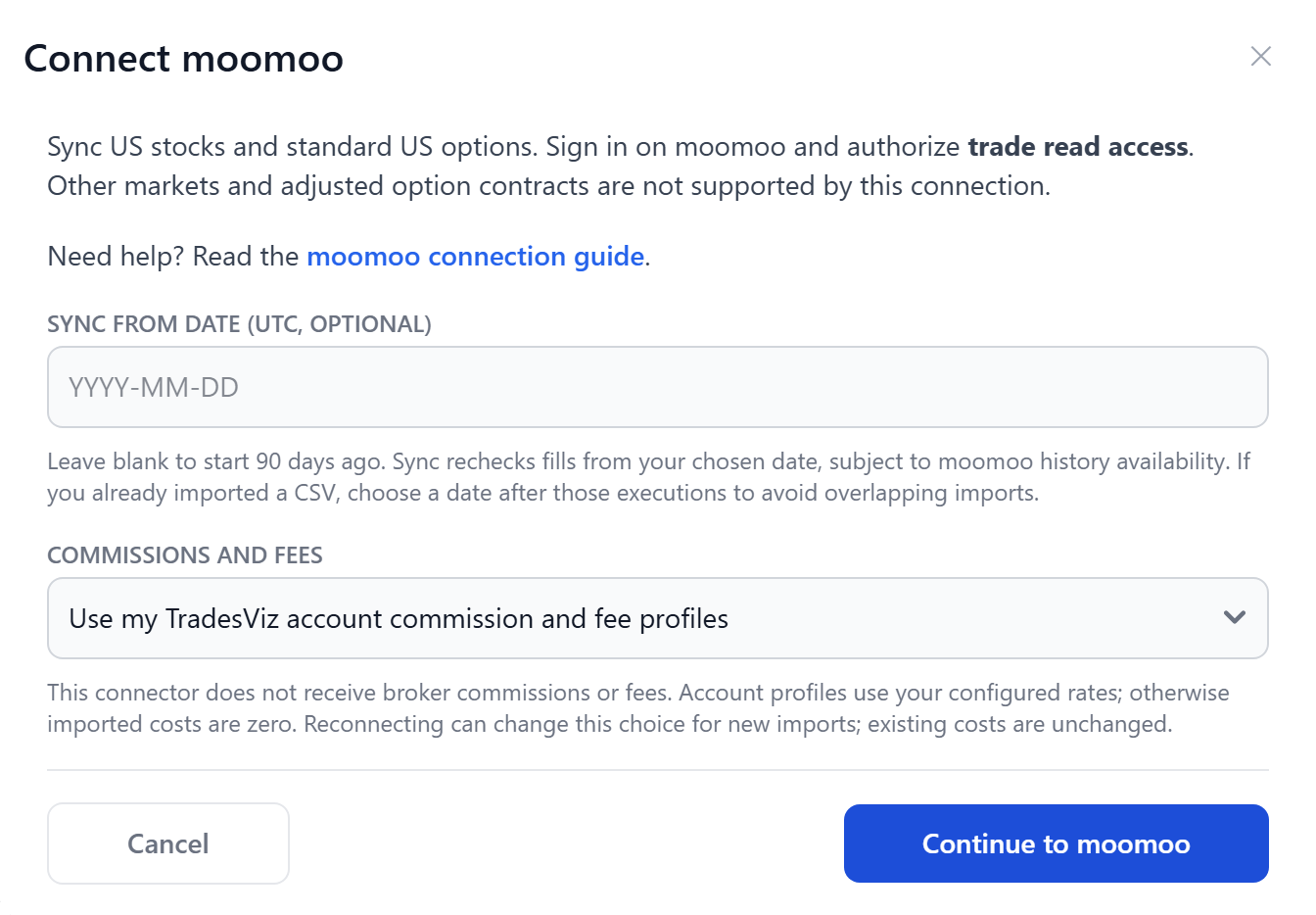
The TradesViz connection form. The start date is optional; choosing how to handle fees is required.
Which fee option should I choose?
This connection does not import broker commissions or fees. Choose the option that matches how you want TradesViz to calculate costs:
- Use my TradesViz account commission and fee profiles: TradesViz calculates costs using the rates you have configured for this trading account. Set up your account commission and fee profiles first. Without a configured profile, imported costs are zero. Profile calculations are not actual charges fetched from moomoo; compare them against your statement.
- Import without commissions and fees (gross P&L): Imported commissions and fees are zero, so your P&L excludes those costs.
2. Authorize read access on moomoo
- After clicking Continue to moomoo, sign in on moomoo's authorization page.
- Authorize trade read access for the account you want to connect. Do not select trading or write permissions; this connector rejects them.
- Confirm authorization. You will return to TradesViz to choose an account.
You enter your moomoo password on moomoo's website. You do not paste a password, API key or authorization code into TradesViz. This connection reads account and trade data and does not place, modify or cancel orders. TradesViz stores the authorization tokens encrypted so scheduled syncs can continue.
3. Select your moomoo account
In Choose a moomoo account, select the authorized account with US trading access, check the fee reminder and click Connect account. The account picker can show more than one account if you authorized multiple eligible accounts.
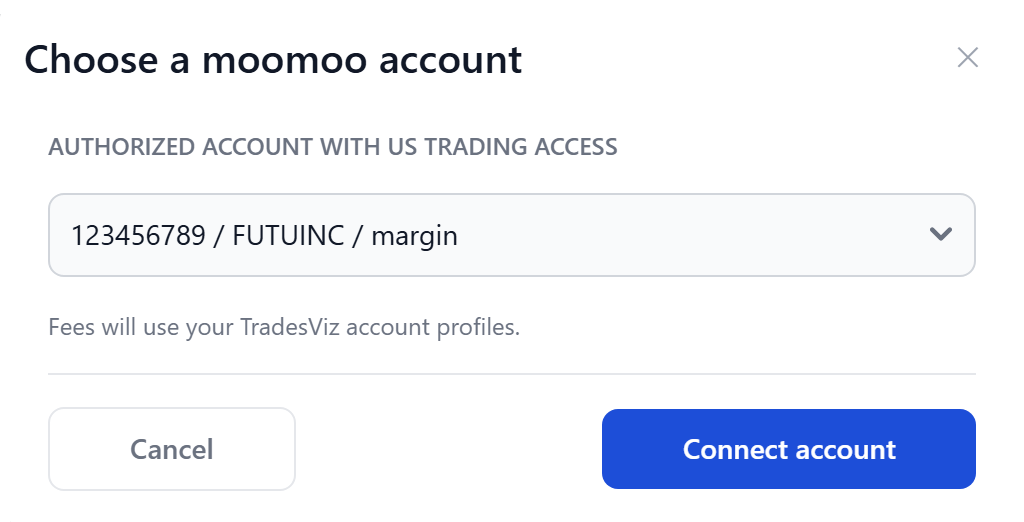
The TradesViz account picker with example account data. Use your own authorized account.
Each connection links one moomoo account to one TradesViz trading account. Connect additional moomoo accounts separately. The same moomoo account cannot be linked to two different TradesViz accounts within your login.
4. Run your first sync
Use the sync button beside the new connection to import your trades. With automatic sync enabled, the connection also uses TradesViz's normal daily sync schedule. Each sync rechecks the saved date range and recognizes executions already imported through this connection.
After the first sync, compare the imported date range, symbols, quantities, prices and execution times with your moomoo statement. Review costs separately using the fee option you selected. If the selected history is too large to finish in one sync, use file imports for older trades and choose a later API sync start date.
Supported trades and limits
- This connection imports USD-denominated US stocks, including fractional shares, and standard US stock and index options.
- Option spreads require individually reported leg executions. A combined spread price alone is not enough to import its legs.
- Other markets, futures, crypto and adjusted option contracts are not supported by this connection. A batch containing an unsupported instrument stops for review.
- This is a trade-execution sync. Deposits, withdrawals, dividends, assignments/exercises, corporate actions and account balance reconciliation are not included.
- Available history depends on moomoo. The initial 90-day default does not guarantee a particular retention period.
Reconnect or troubleshoot
If authorization expires or is revoked, click Reconnect moomoo beside the connection and authorize the same moomoo account again. Reconnecting keeps the destination and imported trades. The form restores your saved date and fee choice; review them before continuing.
You can change the fee choice when reconnecting, but it applies to new imports only. Reconnecting does not recalculate costs on trades already imported.
- No account appears: Check that you authorized the intended account and that moomoo returns US trading access for it.
- Read access was refused: Reconnect and authorize trade read access without trading/write permissions.
- History is incomplete or a fill changed: Retry the sync. If the message remains, contact support before importing overlapping data. The connector stops incomplete downloads instead of importing only the first part.
- Stop syncing: Remove the connection from TradesViz. To withdraw the broker-side authorization as well, revoke the application's access through moomoo.
For moomoo's explanation of account authorization, see its official REST API guide (open.moomoo.com/api/overview/getting-started). For help with your TradesViz connection, email [email protected].