Connect your CoinDCX account to TradesViz with an API key and secret to import your spot and futures trades. You can choose which trade types to sync and the date from which to start importing.
What does CoinDCX auto-sync support?
- Spot trades: pairs quoted in INR, USD, USDT, USDC, TUSD or BUSD.
- Futures trades: USDT-priced contracts, including USDT-margin and INR-margin accounts.
- Trade fees: fees returned with each execution are imported. USD stablecoin quotes follow TradesViz's USD reporting convention.
Spot pairs quoted in other cryptocurrencies, such as BTC or ETH, are not supported. Funding payments, deposits, withdrawals, lending and separate margin-trading history are not imported by this connection. Because funding and wallet activity are excluded, your trade P&L should not be compared directly with a change in your CoinDCX wallet balance.
Create your CoinDCX API key
- Log into the CoinDCX account whose trades you want to import and open the API Dashboard.
- Choose Create A New One and enter a name for the key, such as TradesViz.
- Check the IP-binding setting before continuing. CoinDCX's Bind IP Address to the API Key option binds the key to the device creating it. A key bound to your computer or phone IP will not work from TradesViz servers. If you require an IP-restricted key, contact [email protected] before creating it.
- Request the OTP, enter the codes sent to your registered email and mobile number, and create the key.
- Copy and securely save both the API Key and Secret before refreshing the page. CoinDCX hides the secret after you refresh.
See CoinDCX's official API key creation guide for its current screens and instructions. If your key settings offer a read-only permission option, use it. TradesViz uses this connection to read history and does not place orders or transfer funds.
Connect your account in TradesViz
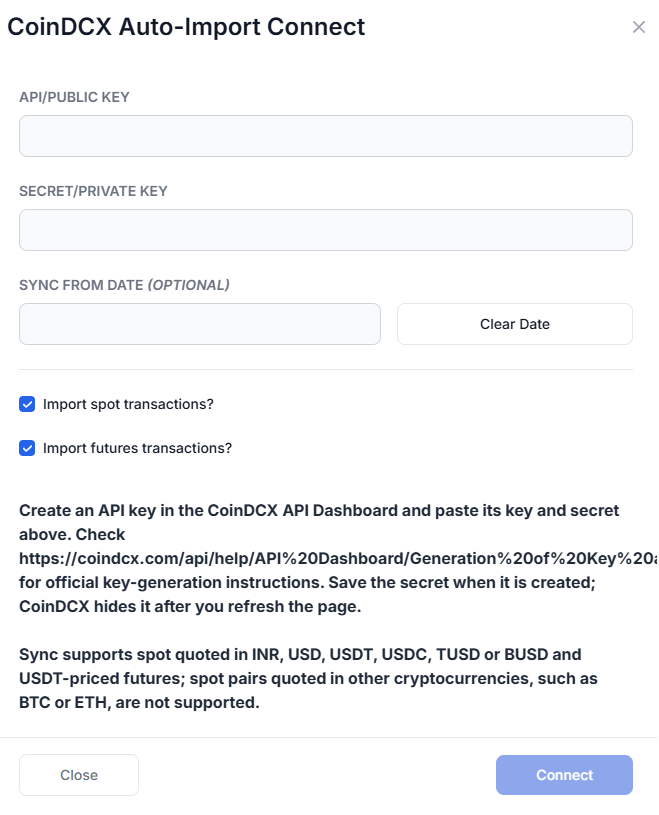
- Open the Import page and select Add auto sync connection.
- Select the TradesViz trading account where the trades should be imported, choose CoinDCX as the broker, and click Connect account.
- Paste your CoinDCX API Key and Secret/Private Key into the popup. Use the API secret, not your CoinDCX login password. No passphrase or symbol list is needed.
- Choose Import spot transactions?, Import futures transactions?, or both. Both are selected by default; at least one must remain selected.
- Set the optional Sync from date. Choose a date before the opening executions of the trades you want to journal. Leave it blank to request the available history without a user-selected starting date.
- Read the history guidance shown in the popup, then click Connect. TradesViz checks access to the selected history APIs before saving the connection.
Run your first sync
Once the connection appears in your account connections list, click Sync to import the available trades. Established connections are also included in the daily automatic sync. The exact completion time varies; you can use the sync button when you need an on-demand update.
After the first sync, compare the imported date range and a few completed trades against CoinDCX. A sync-from date controls what TradesViz requests; it does not guarantee that CoinDCX will return your entire account history. Repeat API syncs recognize previously imported executions. If you already imported statements or manually entered trades, check for overlap before combining those records with an API sync.
Update credentials or resolve a failed sync
- Invalid key or signature: confirm that the API key and secret belong to the same active key. Use the connection's edit option to enter replacement credentials, save, and sync again. You can replace just the secret if the key remains the same.
- IP or permission error: check the key's restrictions. A key bound to your personal device IP cannot be used by TradesViz servers. Also check that the key can read the trade types you selected.
- No trades returned: check the sync-from date, selected trade types and the CoinDCX account where the key was created. A key for one account or sub-account does not provide another account's history.
- Rate limit or temporary service error: wait a few minutes and retry. If history changes while a large futures sync is running, retry once trading activity has settled.
- Unsupported quote currency: BTC- or ETH-quoted spot trades cannot currently be imported through this connection. Contact support if your history includes these pairs.
You can revoke the key in CoinDCX to stop API access and delete the connection in TradesViz to stop future syncs. Deleting the connection does not delete trades already imported into your journal.
For help with CoinDCX auto-sync, email [email protected] with the error message and the date range you expected to import. Do not include your API secret in the message.