Import your Angel One trades into TradesViz using your own SmartAPI app. This guide covers the one-time API key setup and the login process you need to repeat on each trading day.
Updated: 4th October 2026
Your own Angel One SmartAPI API key is required. Angel One only lets a SmartAPI app read the trades of the Angel One account that created it. Create the app using the same Angel One account whose trades you want to import.
Angel One sessions expire daily, and the API only returns the current day's trades. You must start each sync manually. After you log in, TradesViz imports your trades automatically for that sync.
1. Create your SmartAPI app
You only need to create the app once:
- Log in at smartapi.angelone.in using your Angel One account.
- Open My Smart API & Apps and click Add App.
- Give the app a name and set its Redirect URL to exactly:
https://www.tradesviz.com/angel_code_display - Complete the remaining required fields and create the app.
- Copy the app's API key. This is the value you will paste into TradesViz.
About the Primary Static IP field: If the app form asks for an IP address, use your own IP address. Angel One's SmartAPI guidance says static IP validation applies to Orders and GTT APIs. Reading your trades does not require a static IP.
2. Log in and sync your trades
- Visit the TradesViz import page and select the trading account you want to import your trades into.
- Select AngelBroking (API-Auto-Sync) as the platform.
- Under Additional Information, paste your app's API key into the Angel One SmartAPI Key field.
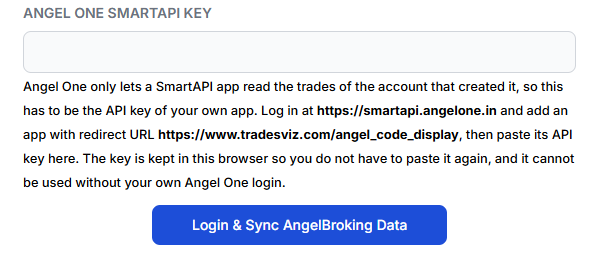
- Click Login & Sync AngelBroking Data.
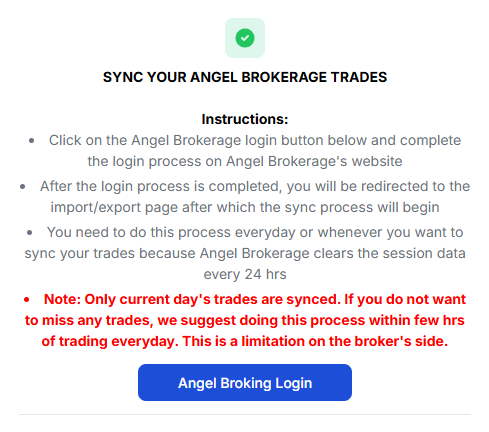
- Read the instructions in the popup, then click Angel Broking Login.
- Complete the login on Angel One's website using the same Angel One account that created the app. Enter your Client ID (not your email address), MPIN, and TOTP as requested. Your login credentials are entered on Angel One's website.
- After authentication, you are redirected to the TradesViz import page and the current day's trades start importing into the trading account you selected. There is no authorization code to copy and paste.
TradesViz remembers your API key in the browser so you do not have to paste it again for each sync. The API key alone cannot be used to access your trades without your own Angel One login. If you change browsers or clear browser storage, paste the key again. If you see an Angel One API Key Needed prompt after logging in, enter your key and click Sync Now.
3. Repeat on every trading day
- Sync after you finish trading that day. Angel One only provides the current day's trades through this API. You cannot sync yesterday's trades today.
- Log in for each sync. Angel One clears API sessions every 24 hours, so saving your API key does not enable unattended daily syncing.
- Check your import settings before starting. You can adjust the advanced import settings on the import page. There is no automatic daily sync toggle for this flow.
Troubleshooting
- Missing or incorrect API key: Copy the API key from the SmartAPI app created by the Angel One account you are logging into. Your Client ID is not the API key.
- Login does not return to TradesViz: Check that the app's Redirect URL is exactly https://www.tradesviz.com/angel_code_display.
- Need to set up your login: Use Angel One's trading website or mobile app to manage your MPIN, and follow Angel One's instructions to set up TOTP with an authenticator app.
- No trades from a previous day: This sync only retrieves the current day's trades. Repeat the process each trading day to keep your journal complete.
If you need help connecting your account, contact us at [email protected].