Trade on your ATAS chart, then review your executions in TradesViz. The TradesViz API Sync indicator sends supported fills to your journal, detects your chart's account and instrument automatically, and keeps a small status dot and settings gear beside the chart header.
Version 1.0.0 is a Windows beta. ATAS X has been tested with actual imports, checked trade values and a restart without duplicate fills. A separate classic ATAS build is available for testing; it has passed build and automated checks but has not yet had the same in-app qualification. This connector does not support macOS.
An active TradesViz PRO subscription or higher is required. Your subscription is checked before the connection succeeds. If an upgrade is needed, visit TradesViz subscriptions.
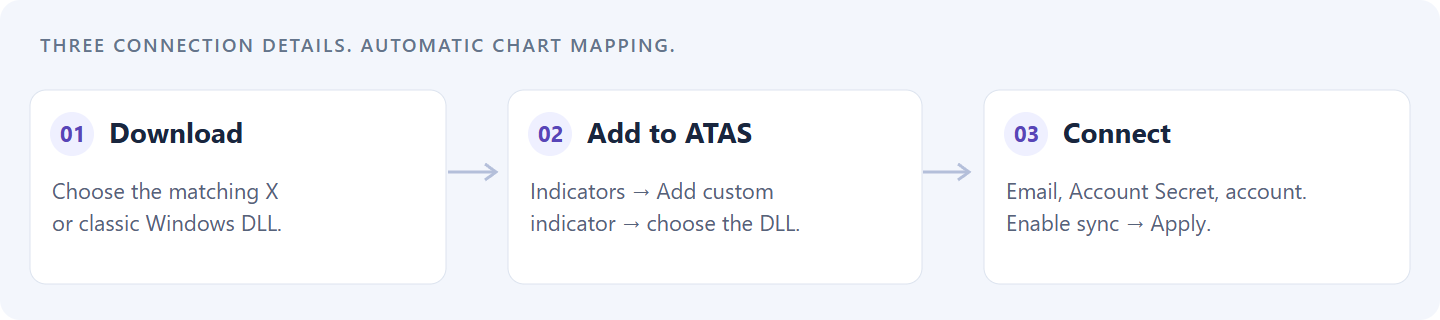
Setup at a glance. Detailed instructions and both downloads are below.
Download the indicator for your ATAS version
Both downloads are built for Windows versions of ATAS using .NET 10. Choose the file for the application you run; the two builds are not interchangeable.
| ATAS version | Download | Release status |
|---|---|---|
| ATAS X on Windows | Download ATAS X Sync v1.0.0 | Beta; tested in ATAS X |
| Classic ATAS on Windows | Download Classic ATAS Sync v1.0.0 | Testing build; live qualification pending |
You do not need to compile anything. Save the DLL on your computer and load it into the matching application. Older .NET 8 ATAS installations are not qualified for these downloads.
Set up ATAS X in five steps
1. Prepare your TradesViz account
Sign in to TradesViz account settings. In Account → General Settings, use the copy button beside Account Secret Key. This is the credential for external apps, not your login password. Keep it private.
Choose the destination in TradesViz Trading Accounts and note its name, for example Sim101. For your first test, use a separate simulation account.
If another broker sync or file import already supplies the same executions, stop the overlapping import before switching. Make the switch while flat so the new connection can capture each trade's entry and exit. Importing the same fills through a different source can create duplicates.
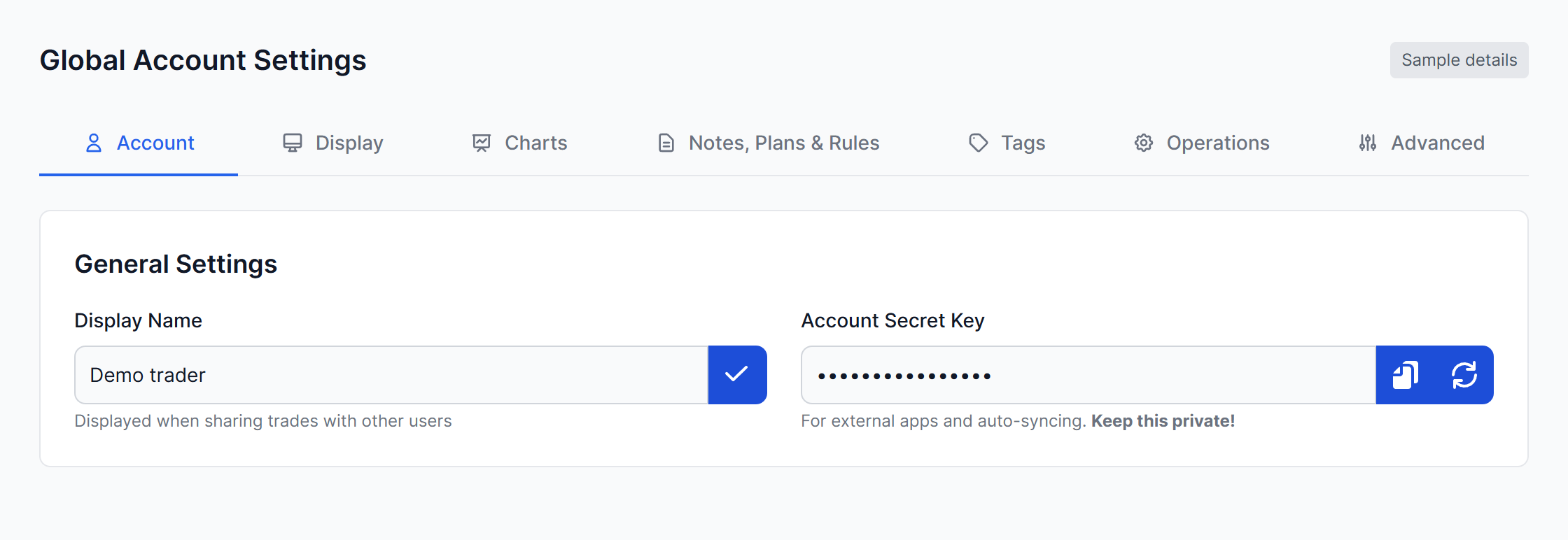
Open Account → General Settings and use the copy icon beside Account Secret Key. This illustration uses sample details and hides the key; keep your real key private.
2. Add the indicator to your chart
In ATAS X, open your trading chart and select the intended trading account and instrument. Open Indicators, choose Add custom indicator, select the downloaded ATAS X DLL, then add TradesViz API Sync to the chart.
Adding the indicator displays its status; first-time setup still needs the connection details below. Classic ATAS uses the same custom-indicator installation workflow with its own DLL, but that build is still awaiting in-app qualification.
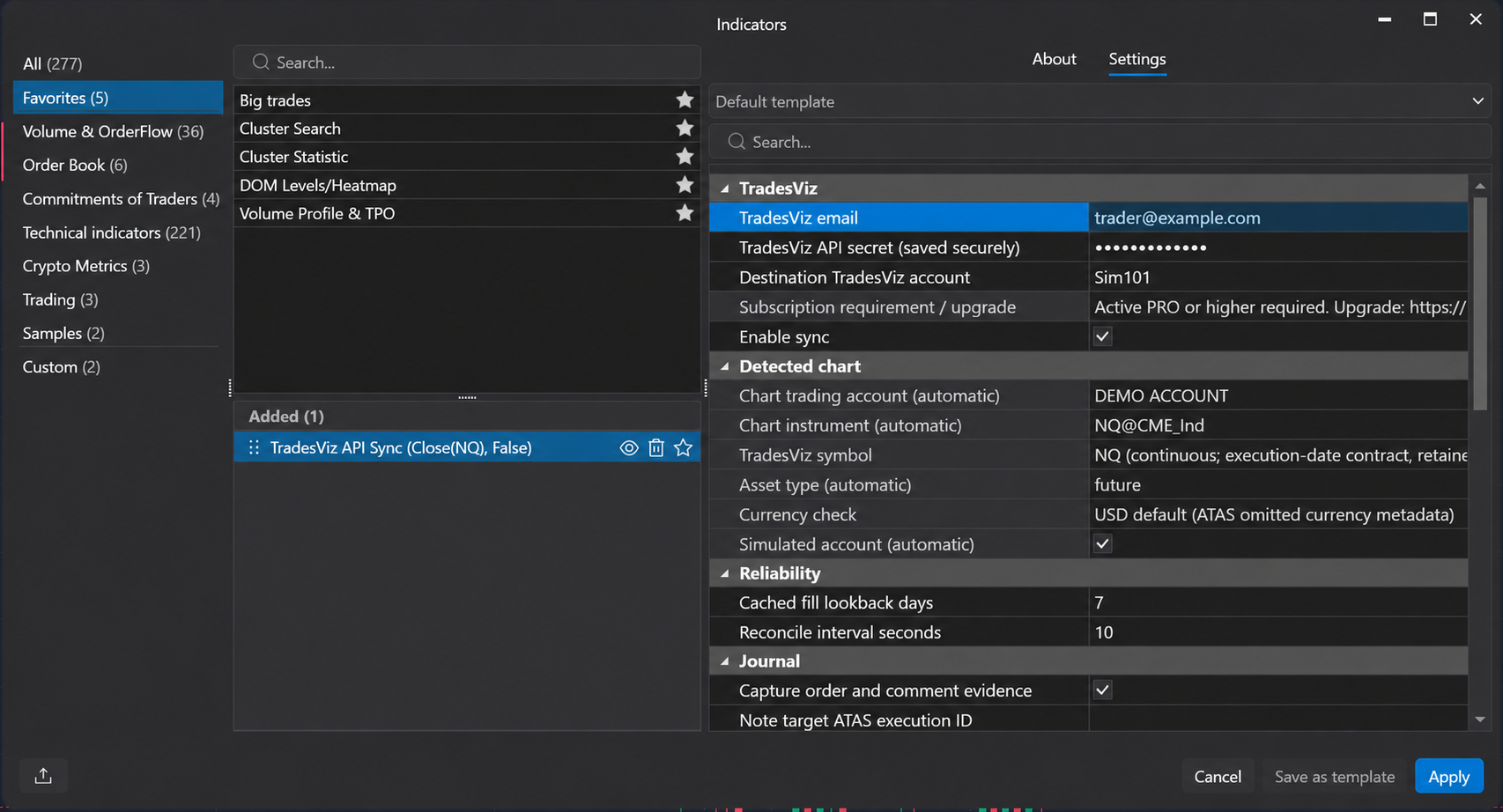
Choose Add custom indicator at the bottom left, then select the matching DLL. The installed TradesViz API Sync indicator is shown here. User-supplied ATAS X screenshot, privacy-edited to replace personal details with sample values. Appearance may vary by version.
3. Enter your connection details
Click the small gear beside the TradesViz chart status. Enter:
- TradesViz email: the email used for your TradesViz account.
- API secret: the Account Secret Key copied in step 1.
- Destination account: the trading account name shown in TradesViz, such as Sim101.
The destination name does not have to match your ATAS account name. Leave advanced settings at their defaults for normal setup: the chart account, instrument and simulation mode are detected automatically.
4. Enable sync
Check Enable sync, then click Apply. The indicator checks your subscription and destination before connecting.
Your secret is saved securely for your Windows user, and the Enable sync preference survives workspace reloads and restarts. Ordinary setting changes do not clear either. On another computer or Windows user account, enter the key again.
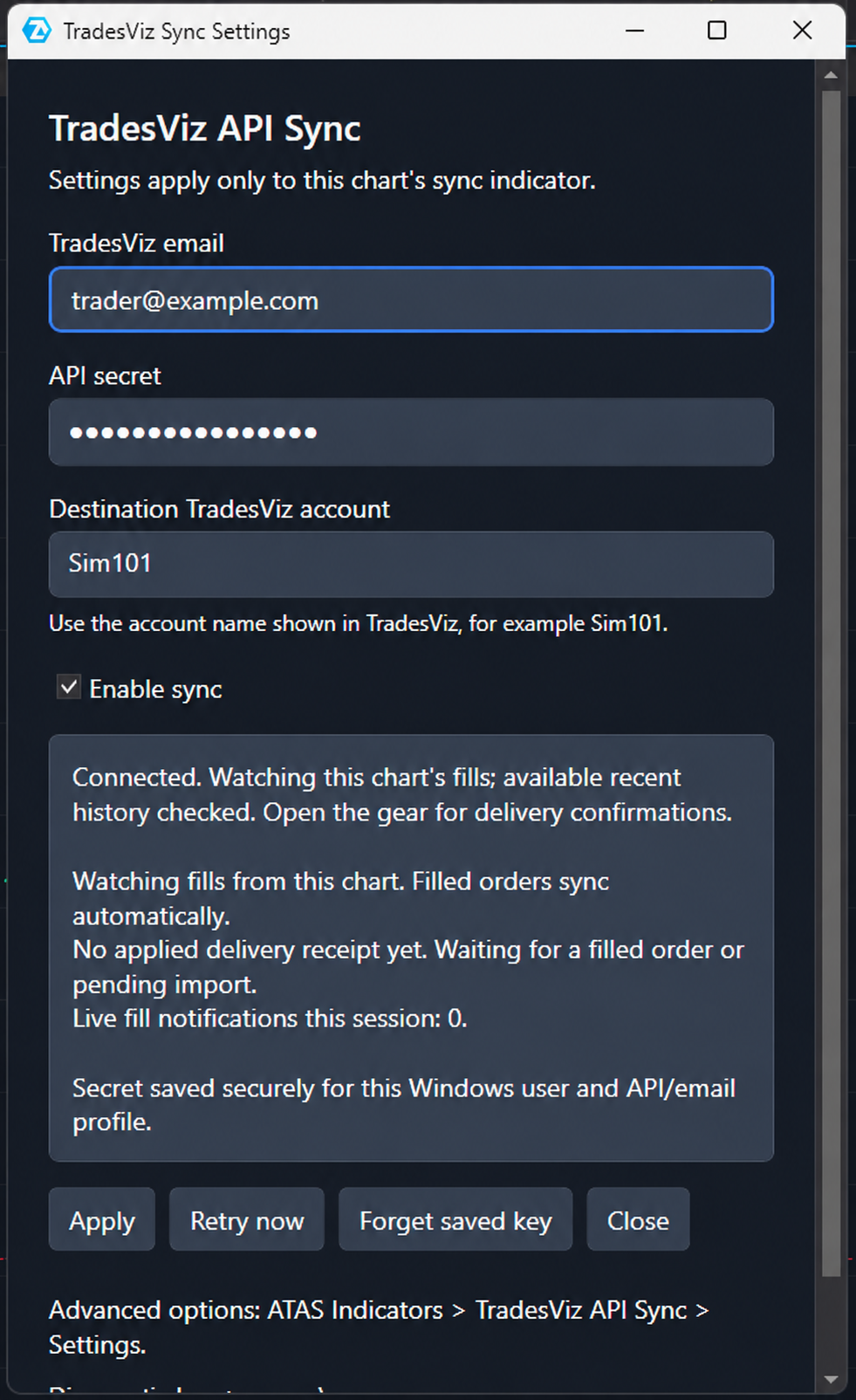
Enter your three connection details, select Enable sync, then click Apply. User-supplied ATAS X screenshot, privacy-edited with a sample email and masked key.
5. Check your first filled trade
Start with a simulated trade. An order must fill before there is an execution to import. Open the gear to check delivery confirmation, then verify the quantity, entry and exit prices, and costs in TradesViz.
Keep ATAS and the chart running while trading. The connector cannot capture fills that ATAS never receives; recovery while it was closed depends on the history still available when you reopen it.
Each indicator watches one chart account and instrument. Use a separate chart for each instrument you want to journal. Check the status after changing accounts, instruments or connections; if it pauses after a change, verify the selected chart source and click Retry now.
What gets synced?
Entries, exits, partial fills and changes in position size are sent as executions. TradesViz assembles those executions into trades in your normal journal.
The beta supports USD stocks, supported listed futures, and linear Binance Futures pairs quoted in USDT or USDC. Crypto preserves fractional base-coin quantities. Inverse or coin-margined contracts and other crypto venue or currency combinations are outside this release.
Continuous futures are supported. For a new position, TradesViz chooses the supported front contract using the opening fill's execution date. The trade uses TradesViz's normal dated-futures format, and that contract stays fixed until the position is flat. A retry does not change its contract month.
At startup, sync checks the recent fills still available in ATAS's cache, with a seven-day lookback by default. This helps recover recent executions; it does not download complete broker history. Earlier entry fills must be available to reconstruct an already-open position.
Read the status at a glance
The compact indicator sits beside the chart's provider caption, above candle-hover details. On very narrow charts, the dot and gear move to the lower-right corner.
| Dot | What it means |
|---|---|
| Green | Active and watching for fills |
| Yellow | Setup, paused, connecting or retrying; open the gear for details |
| Red | Attention needed; open the gear and follow the message |
Active does not mean every pending fill has arrived. The gear panel shows delivery confirmations separately. A temporary connection or service error keeps captured fills on your computer for retry. Retrying those same captured fills, including after a restart, preserves their identity to prevent duplicate imports.
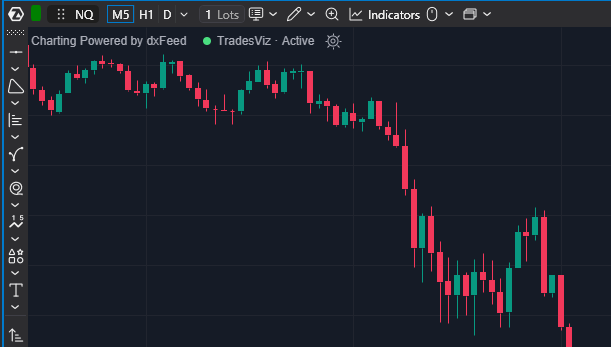
Actual ATAS X chart showing the compact status beside the provider caption. Active means the indicator is watching for fills, not that a delivery has completed. Click the gear for settings and delivery confirmations.
Notes, stops, targets and screenshots
Where ATAS supplies an exact link to a fill, observed order comments and stop/target information can become trade notes. These observations do not update TradesViz's editable stop-loss or take-profit fields.
For a manual note, open Indicators → TradesViz API Sync → Settings → Journal. Enter the ATAS execution ID, note title and text, then select Queue this note. Notes wait until the execution has been imported and can be linked to one trade; uncertain links remain pending.
Automatic screenshot capture/upload and ATAS daily journal import are not included in this beta.
If a trade has not appeared
Open the gear, read the full status and check that Enable sync is on. Confirm that the order filled and that the indicator is on the correct account and instrument. Temporary failures retry automatically; after correcting a reported issue, use Retry now. Keep the existing settings and saved history intact.
For diagnostics, press Win+R in Windows and paste:
%LOCALAPPDATA%\TradesViz\AtasSyncLogs\sync.log
The exact path also appears in the settings panel. When contacting support, include the status message, ATAS version and relevant log lines. Never include your Account Secret Key.
Current beta limits
Each chart's sync history retains up to 10,000 fills or 128 MiB, whichever comes first, including already-imported fills. Capture stops at that limit; it does not reset daily. Automatic archival is not available yet. Contact support if reached, and do not delete the saved history to clear it. This beta is intended for supervised use rather than unattended high-volume operation.
Supported commission data is imported; missing commission defaults to zero. Unsupported nonzero fee currencies can pause delivery. Funding payments and other account-level charges are not imported, so check those separately when reconciling costs.
Choose the matching download above, begin with a simulation account, and confirm your first completed trade in TradesViz. The indicator observes your executions; it never places or changes orders.