In this post, we will explore how to pair your TradesViz account with BitMEX.
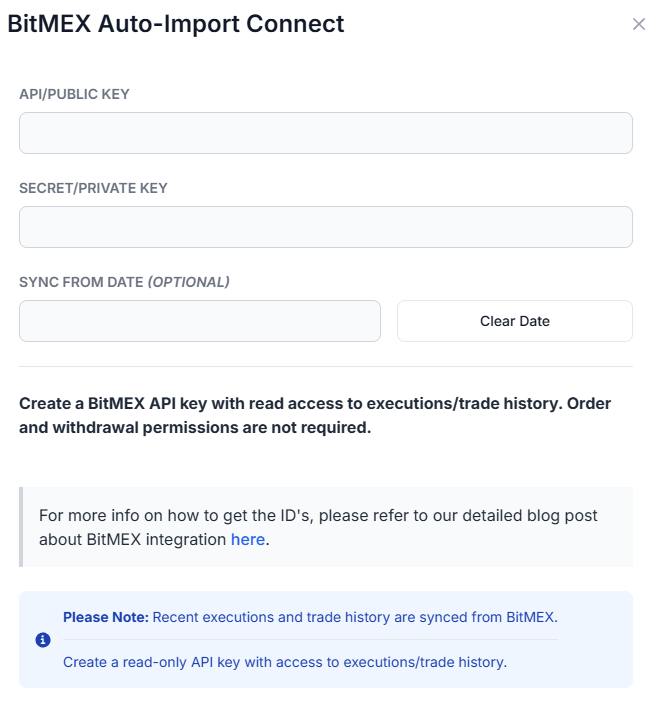
Once you select your trading account and broker as "BitMEX" in the trade auto-import page, a popup box will appear when you click on the "Connect account" button.
The purpose of this blog post is to guide you in establishing a BitMEX connection on TradesViz.
Here are the steps you need to follow:
- Log into BitMEX and open the BitMEX API key management page.
- Create a new API key and label it TradesViz so it is easy to identify later.
- Keep the key read-only. TradesViz only needs access to your execution/trade history. Do not enable order placement, withdrawal, or transfer permissions.
- Copy the API key and API secret when BitMEX displays them. The secret may only be shown once.
- In TradesViz, go to the Import page, open the Add auto-sync connection tab, select your trading account, and choose BitMEX as the broker.
- Enter your BitMEX API key and secret key in the connection popup.
- Select the sync-from date if you want TradesViz to start from a specific date, then click Connect.
Once connected, you can click on sync in the connections list to fetch available BitMEX execution history. All our syncs run automatically, and you are also able to manually trigger the sync at any time.
Note: This connection only requires read access to your BitMEX execution history. We do not request trading, withdrawal, or transfer permissions.
That's it! Please let us know if you have any questions or concerns about the BitMEX auto-sync integration by sending us an email at [email protected].