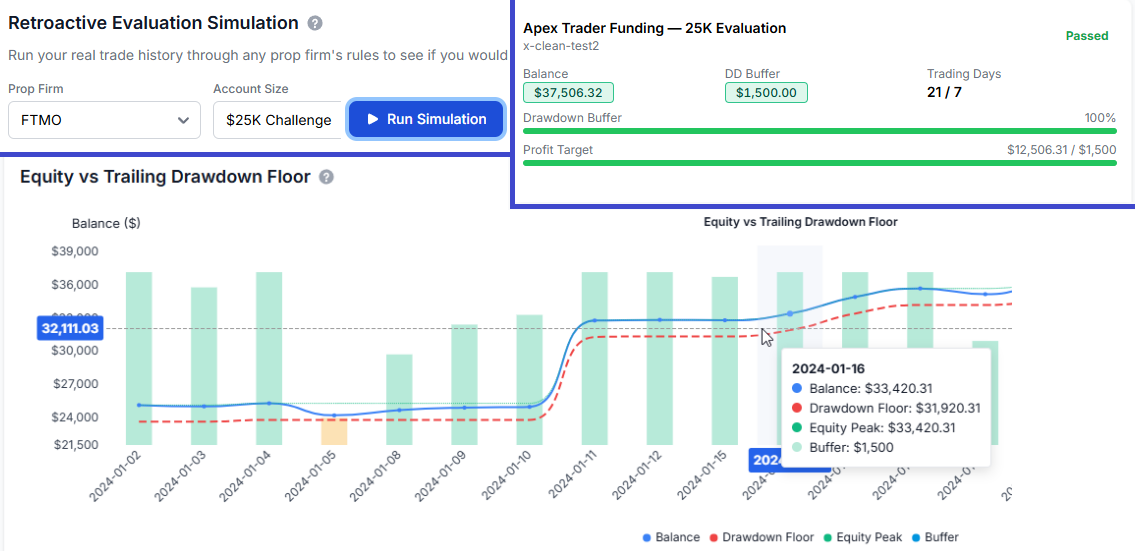
If you trade with a prop firm or you are evaluating whether you could pass one, TradesViz now has the most comprehensive prop firm compliance system built into any trading journal. We have shipped pre-built prop firm profiles for 20 firms and 65 account configurations, a real-time compliance dashboard with 9 metric widgets, a multi-account compliance overview, retroactive evaluation simulation with rolling-window analysis, and a Challenge Mode for the trading simulator - all powered by the same synced trade data you already use for performance analysis.
Here is why this matters. Most prop firm traders currently cobble together spreadsheets, third-party drawdown trackers, and mental math to monitor their account rules. You already import every trade into TradesViz. Your journal already knows your P&L, your daily results, your drawdown history, your MFE and MAE. The only missing piece was telling it which rules to check against. That is exactly what we have built.
This is a complete guide to every aspect of the system.
20 Prop Firms, 65 Account Profiles - Pre-Built and Ready
We have built a comprehensive database of prop firm rules covering 20 of the most popular firms across futures, forex, and multi-asset evaluations. Each firm includes multiple account sizes - including both evaluation and funded account phases - with their exact rules:
- Futures firms: Apex Trader Funding, Topstep, My Funded Futures (MFF), Tradeify, TradeDay, Elite Trader Funding, Earn2Trade, Take Profit Trader, Bulenox, UProfit, OneUp Trader, Phidias, Top One Futures, BluSky Trading
- Forex/Multi-asset firms: FTMO, FundedNext, The5ers, FunderPro, FXIFY, FundedTradingPlus
For each firm and account size, we store:
- Starting balance
- Maximum drawdown amount and drawdown type (more on this below)
- Daily loss limit (where applicable)
- Profit target
- Minimum trading days
- Consistency rule percentage
- Maximum contracts/position size limits
- Payout buffer for funded accounts
- Trailing lock level (for trailing-to-static drawdown types)
- Exact commission rates per contract type - futures, micro-futures, and more - matching the firm's fee schedule (see our advanced commission profiles guide for how commissions are handled across TradesViz)
- Platform connection method (Rithmic, Tradovate, MT4/MT5, NinjaTrader, and others)
- Evaluation phase (Phase 1, Phase 2 / Verification, Funded)
This is not a vague "prop firm tracking" feature. These are precise rules - the exact same numbers you see on each firm's website - encoded so that TradesViz can calculate your compliance status automatically. Several firms with multi-phase evaluations (such as FTMO's Challenge + Verification, or funded-phase profiles for Apex and Topstep) have separate profiles for each phase with their distinct rules.
Understanding The 4 Drawdown Types
Prop firms do not all calculate drawdown the same way, and confusing them is one of the top reasons traders fail evaluations. If you have not already, read our drawdown charts and analysis guide for how TradesViz tracks drawdowns across all your accounts. The compliance engine now supports all four major drawdown calculation methods used by prop firms:
1. Trailing End-of-Day (EOD)
Used by firms like Topstep and Tradeify. The drawdown floor moves up based on your end-of-day equity - meaning intraday spikes do not raise the floor. If your account peaks at $53,000 at the end of a trading day (on a $50,000 account with $2,500 max DD), your new floor is $50,500. The floor only ever moves up, never down.
2. Trailing Intraday
Used by firms like Apex Trader Funding for evaluations. The floor moves up in real-time with every tick that sets a new equity high. This is the strictest form -- a large intraday spike that you give back can immediately tighten your buffer. Understanding your MFE (Maximum Favorable Excursion) is critical here - if your trades routinely spike in your favor before pulling back, trailing intraday drawdown will punish that behavior.
3. Static
Used by firms like FTMO and FundedNext. The floor is simply starting_balance - max_drawdown and it never moves. If your $100,000 account has a $10,000 max drawdown, your floor is always $90,000 regardless of how much profit you have made.
4. Trailing-to-Static Lock
Used by some firms for funded accounts. The floor trails up like EOD trailing, but once the floor reaches your starting balance (the lock level), it locks in place and stops trailing. This means once you have made enough profit to "erase" the drawdown cushion, you are effectively on a static drawdown from that point on. TradesViz tracks the lock level and status automatically.
TradesViz handles all four automatically. You do not need to know the math. Just select your firm and account size, and the system applies the correct calculation.
How To Apply a Prop Firm Profile
Setting up takes about 10 seconds:
- Go to Account Settings and select your Trading Account
- In the Prop Firm Profile section, select your firm from the first dropdown
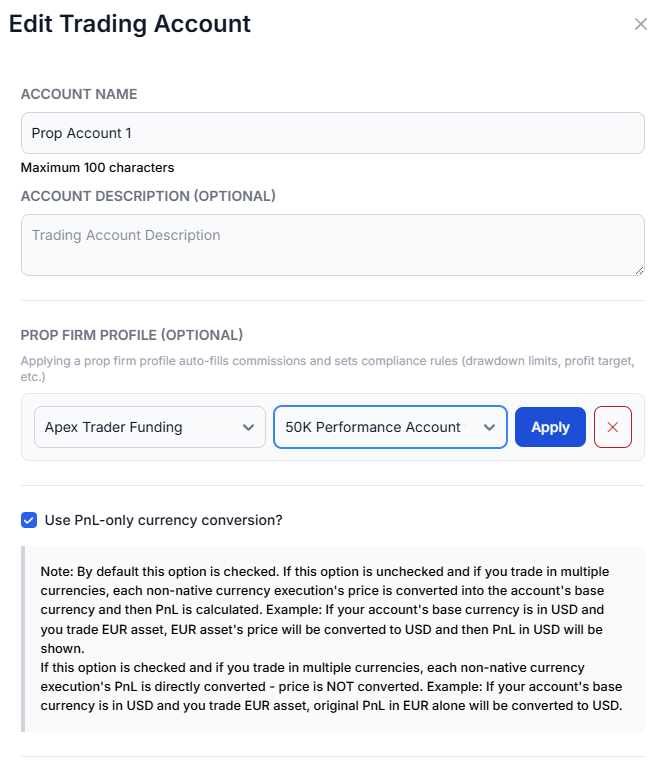
- Select your account size and phase from the second dropdown
- Click Apply
Alternatively, from the Compliance tab itself.
The prop firm compliance tab is under the Summary section in your sidebar:
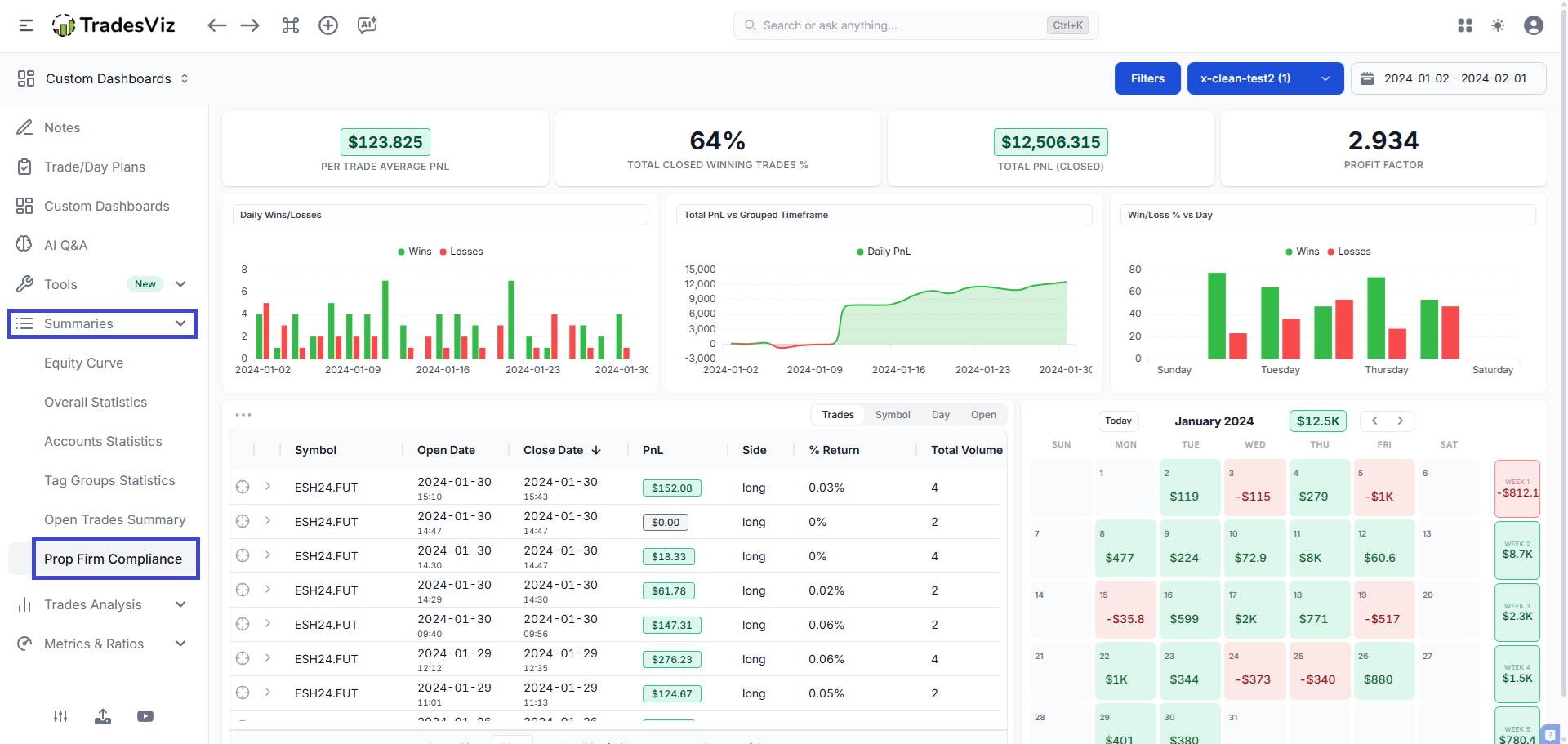
If you are using Simple mode, you may have to turn it off and navigate teo summary or check the other tabs and navigate to summary.
Once you are on the Prop firm compliance tab, click Select Prop Firm Profile to open a modal with all 20 firms and their account sizes displayed in a grid. Click any profile to apply it instantly.
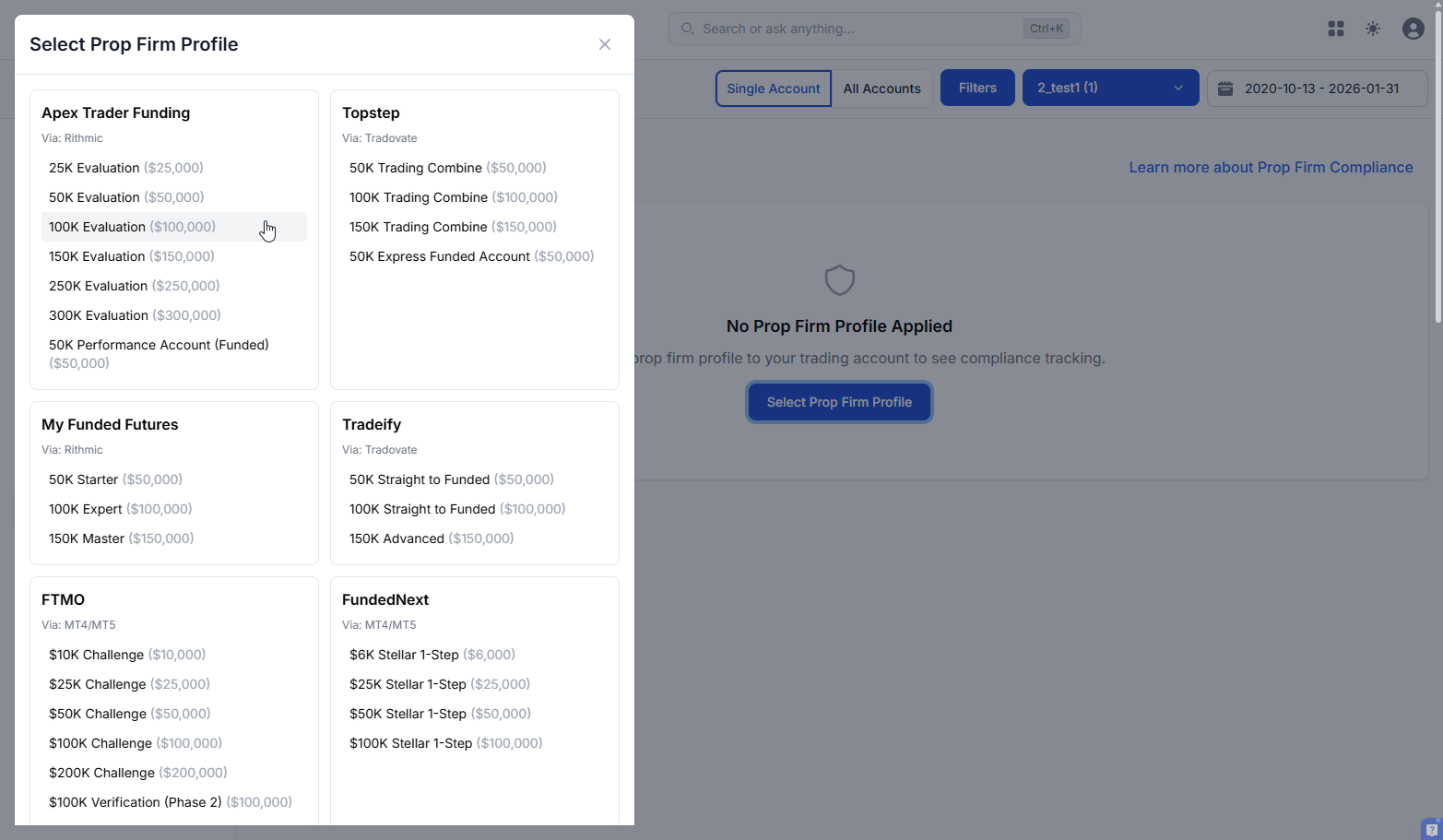
When you apply a profile, TradesViz automatically:
- Sets the correct commission rates for your account, matching the firm's fee schedule (futures and micro-futures per-side rates)
- Stores the firm's drawdown rules, daily loss limits, profit target, minimum trading days, consistency rules, contract limits, and payout buffer on your account
- Enables the compliance dashboard tab for that account
No database migrations, no extra setup. The profile data is stored alongside your existing account settings. You can remove it at any time with a single click, and your original account settings remain untouched.
The Compliance Dashboard
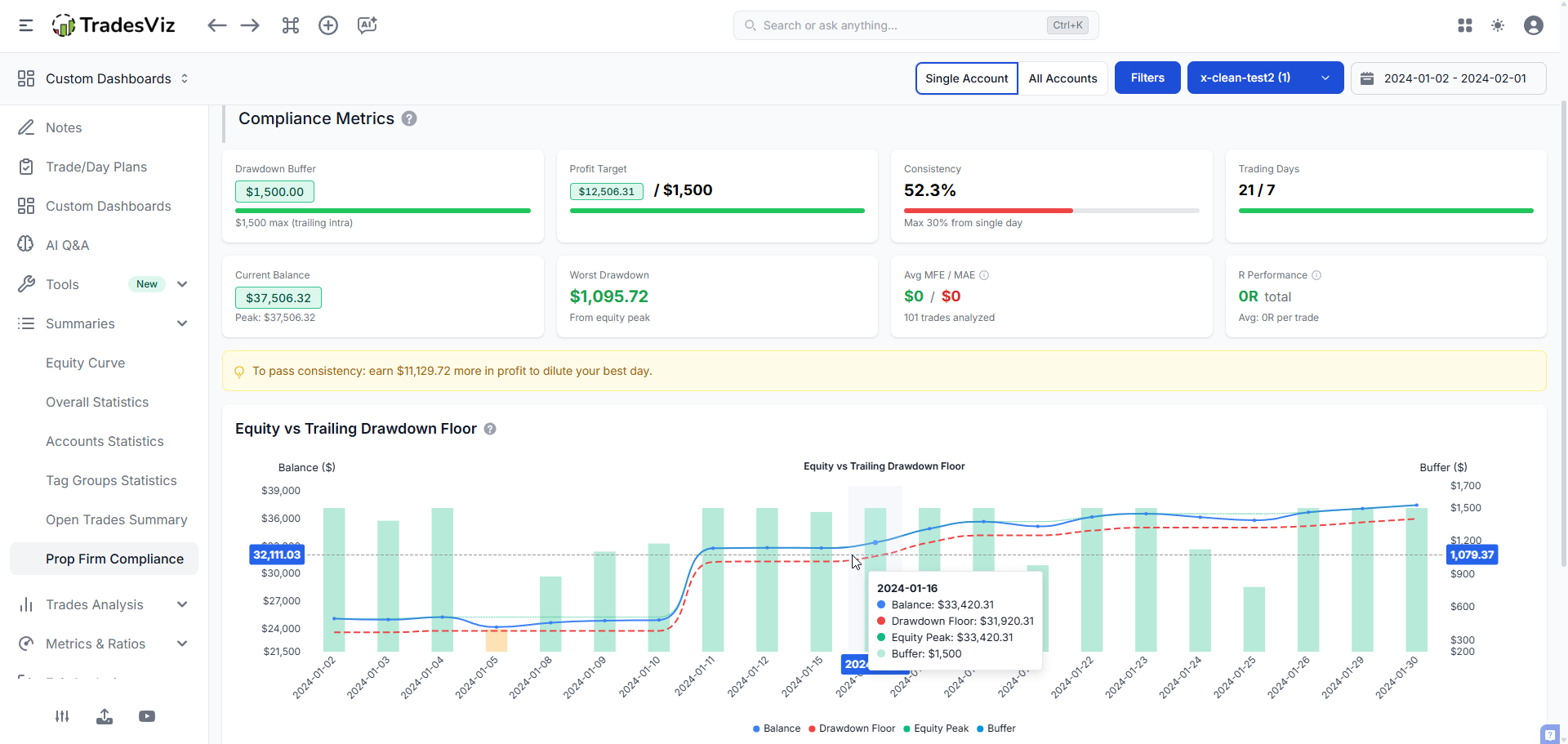
Once a prop firm profile is applied, a new Prop Firm Compliance tab appears in your dashboard sidebar (under the Summaries section). Navigate to it and you will see a comprehensive compliance view built from your actual synced trades. The dashboard contains 9 metric widgets, an interactive chart, and a full retroactive evaluation simulator.
Drawdown Buffer Gauge
The most critical metric for any prop firm trader. This shows your remaining room before a drawdown violation -- expressed in both dollars and percentage. The gauge is color-coded: green (>50% buffer remaining), yellow (25-50%), or red (<25%). Below it, you see the maximum drawdown allowed, the drawdown type being used, and the current trailing floor value.
Profit Target Progress
A progress bar showing how far you are toward hitting your profit target, with both dollar and percentage values. When you hit 100%, the bar turns green. This widget is hidden if the profile has no profit target (e.g., funded accounts).
Daily Loss Limit Tracker
Shows your daily loss limit, your worst daily loss, and the number of days that breached the limit. Each violation day is flagged. The compliance engine tracks per-day daily loss remaining and daily loss percentage used in the breakdown, so you can see exactly how close you came on any given day.
Consistency Score
Many firms (especially for funded accounts) require that no single day accounts for more than a certain percentage of your total profit. The consistency gauge shows your current score and, critically, tells you exactly how much more profit you need to earn to dilute your best day below the threshold. For example: "Earn $1,240 more in green days to bring your best day below 30% of total profit." This "profit needed for consistency" metric is unique to TradesViz and gives you a concrete, actionable number rather than just a score.
Trading Days Counter
Progress bar showing how many trading days you have completed versus the minimum required.
Current Balance
Your current account balance (starting balance + cumulative net P&L), updated from your synced trades.
Worst Drawdown
The deepest drawdown you have hit during the evaluation period, in dollar terms. Compare this against your maximum drawdown allowed to understand how much margin you have had at your worst point.
MFE/MAE Performance
Average Maximum Favorable Excursion and Maximum Adverse Excursion across all trades in the compliance period. This is directly relevant for prop firm traders because MFE tells you how much unrealized profit your trades typically reach (important for trailing intraday drawdown), and MAE tells you how much heat you typically take (important for daily loss limits). These metrics come from the same advanced performance analytics engine that powers the rest of your dashboard.
R Performance
Total R and Average R from your trades, using R-value analysis. This helps you evaluate whether your risk management during the evaluation is consistent with your normal trading - a critical insight when deciding which account sizes and firms match your style.
Note: This will be 0 if you have not filled in your stop losses. Most brokers do not report stop losses. Consider using advanced target profiles to automate this.
Payout Readiness Indicator
For funded accounts with payout buffer requirements, this shows whether you have built enough buffer above the trailing floor to be eligible for a payout. The exact dollar amount remaining is displayed.
Contract Violation Tracking
If the profile defines a maximum number of contracts, the compliance engine tracks your daily contract usage and flags any days where you exceeded the limit. This is logged in the per-day breakdown.
Equity vs. Trailing Drawdown Floor Chart
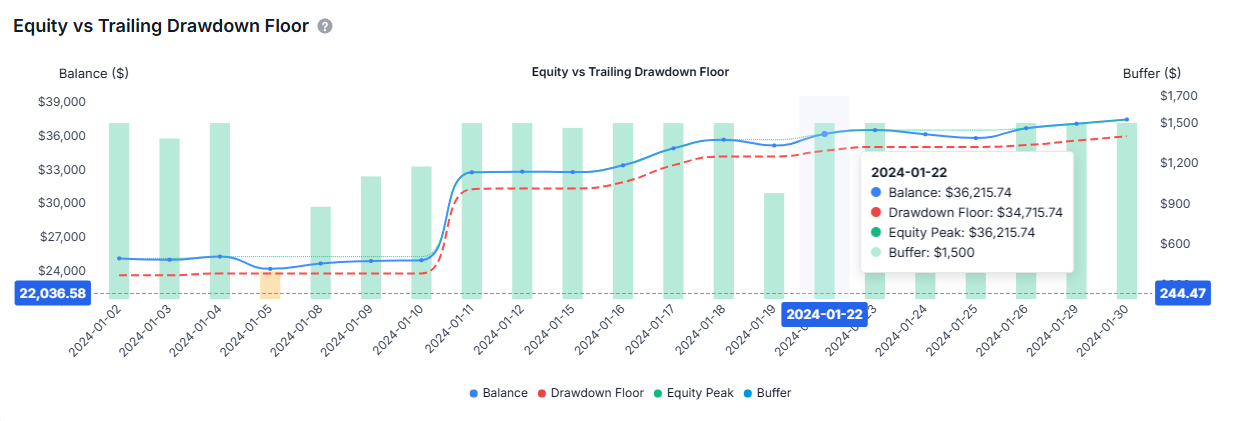
A full interactive chart showing four series: your account balance (line), the trailing drawdown floor (dashed red line), your equity peak (dotted green line), and the drawdown buffer (color-coded bars). Daily loss limit breaches are marked with red pins on the chart. This is the same type of visualization that institutional risk desks use - now available for individual prop firm traders. You can see exactly how your floor has been moving relative to your equity and where your closest calls have been. The chart supports dark mode, dual Y-axes (balance + buffer), and responsive sizing.
Failure Alert
If the compliance engine detects that you have breached any rule, a prominent red alert appears at the top of the dashboard with the specific failure reason and the exact date it occurred. The profile status card also updates to show FAILED status.
Multi-Account Compliance Overview
If you are running multiple prop firm evaluations simultaneously - which many serious traders do - the compliance dashboard includes a Multi-Account mode. Switch to it using the segmented toggle at the top of the page.
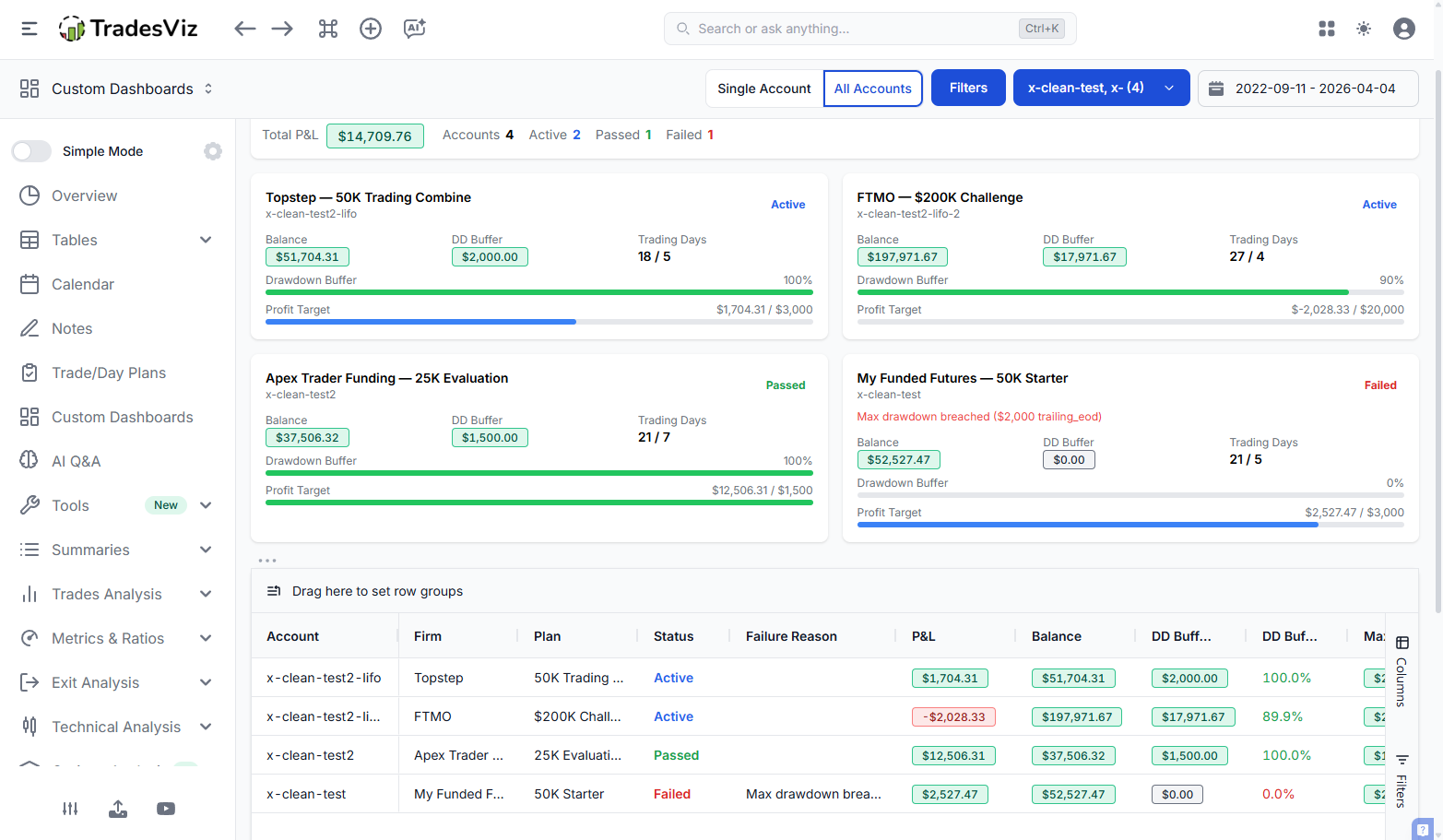
The multi-account view automatically finds every trading account in your TradesViz account that has a prop firm profile applied and calculates compliance status for each one. You see:
- Aggregate stats: Total accounts, active count, passed count, failed count, and total P&L across all prop firm accounts
- Per-account cards: Each account gets a card showing the firm name, account size, status (active/passed/failed), current balance, drawdown buffer progress bar, profit target progress bar, and failure reason if applicable
- Full data table: An ag-Grid table with sortable, filterable columns covering every metric: account name, firm, status, balance, P&L, drawdown buffer, profit target progress, consistency score, trading days, and more. Export to CSV, save column state, and use column filters to slice the data however you need
This means if you are running three Apex evaluations, two Topstep accounts, and an FTMO challenge, you can see all six compliance statuses in one view. No switching between accounts, no separate dashboards.
Retroactive Evaluation Simulation
This is one of the most powerful capabilities in the system and something no other trading journal offers.
The question: "Based on my real, historical trading data, would I have passed a specific prop firm's evaluation?"
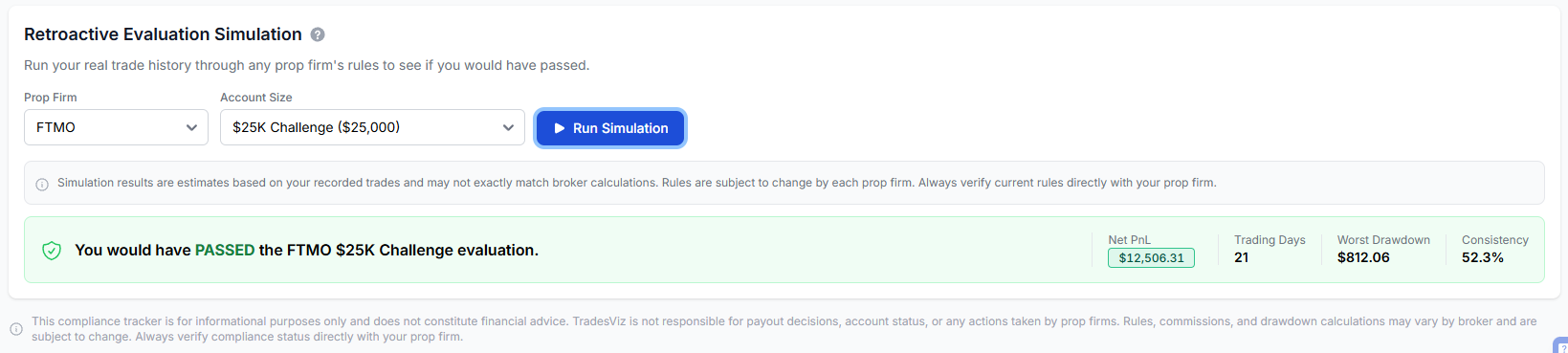
The retroactive eval simulator takes your existing synced trades and runs them through any prop firm's rule set. You select a firm and account size from the dropdown, click Run Simulation, and within seconds you get a definitive answer:
- PASSED: you would have met all the rules
- FAILED: with the specific reason (drawdown breach, daily loss violation, consistency failure) and the exact date you would have failed
- ACTIVE: you did not fail but also did not hit the profit target yet (evaluation still in progress)
The results include your net P&L, total trading days, worst drawdown hit, and consistency score for the simulated evaluation.
Rolling Window Analysis
Beyond the single-shot "would I have passed" question, the retroactive eval simulator supports rolling window analysis. Specify a window size (e.g., 30 days), and the engine runs the evaluation across every possible N-day window in your trade history. You get a pass rate percentage - for example, "You would have passed an Apex 50K evaluation in 67% of all possible 30-day windows in your trading history."
This is a fundamentally different and more useful question than a single pass/fail result. It tells you how consistently your trading style aligns with a firm's rules, not just whether one specific stretch of days happened to work out. Use it to compare firms objectively: maybe your pass rate for Apex 50K is 45%, but for Topstep 50K it is 72% because the drawdown type and daily loss limits are more forgiving for your style.
You can run retroactive evaluations against any of the 65 profiles - not just the one applied to your account. Compare FTMO 100K vs. FundedNext 100K. See if your futures data would pass Apex vs. My Funded Futures. The data is already in TradesViz. Now you can actually use it.
Challenge Mode in the Trading Simulator
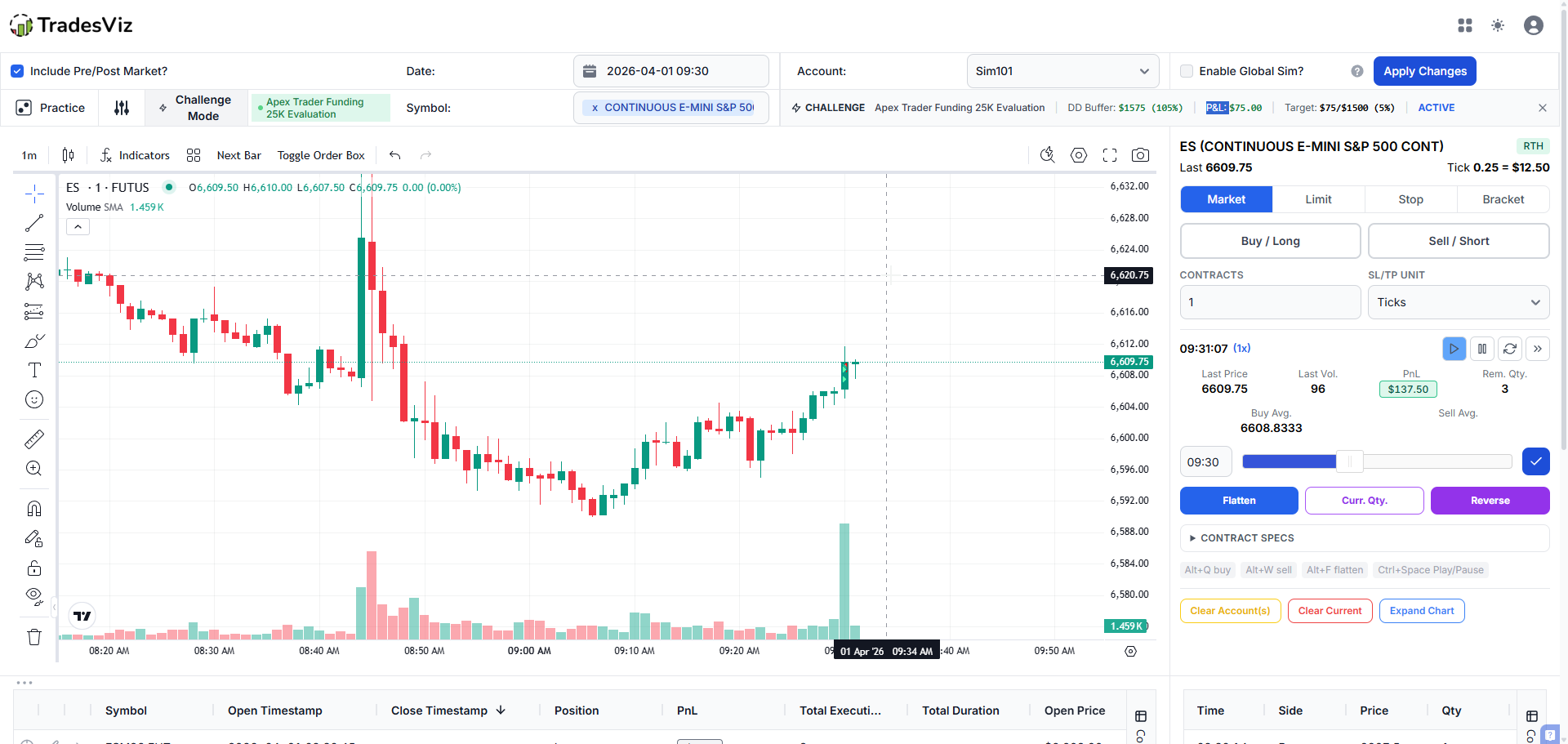
TradesViz already has a built-in trading simulator that lets you practice on historical market data with real order execution, bracket orders, flatten/reverse, and trade recording. We have added Challenge Mode - an overlay that turns any simulator session into a prop firm evaluation simulation.
How it works:
- Click the Challenge Mode button in the simulator toolbar
- Select a prop firm and account size from the picker (all 65 profiles available)
- Start trading, and Challenge Mode is now active
While Challenge Mode is active, a real-time overlay appears at the top of the simulator showing:
- The firm name and account profile
- Your drawdown buffer - updated on every price tick, color-coded by danger level
- Your session P&L - cumulative realized + unrealized
- Your profit target progress
- Your daily loss limit remaining (if applicable)
- Status: ACTIVE, PASSED, or FAILED
What happens on failure:
If you breach a drawdown limit or daily loss limit during your simulated session, the simulator automatically pauses and shows a result modal with:
- The specific rule you violated
- Your session P&L at the time of failure
- Total trades taken
- Peak equity reached
What happens on pass:
If your session P&L hits the profit target, you see a confirmation that you passed the evaluation. The simulator continues running, so you can keep trading or choose to stop.
No other trading journal or simulator enforces prop firm rules in real-time during practice sessions. The closest alternatives are prop firms' own evaluation accounts, which cost real money. With Challenge Mode, you can practice for free, on any historical data, as many times as you want. Combine this with TradesViz's extensive simulator system and bracket order support for a realistic practice environment.
How This Integrates with the Rest of TradesViz
The compliance system is not a standalone add-on. It is deeply integrated with the analytics you already use:
- Commission accuracy: When you apply a profile, the firm's exact per-contract commissions are set via the advanced commission profiles system. All P&L in the compliance engine is net of commissions - the same net P&L used by the rest of your dashboard.
- MFE/MAE analysis: The compliance dashboard surfaces your MFE and MAE averages alongside drawdown metrics. Understanding your typical trade excursion is essential for sizing up which drawdown type you can handle.
- R-value tracking: Your R-value performance is shown in the compliance view. If your average R drops during an evaluation period, that is a signal worth investigating.
- Tags and filters: Use tags to mark evaluation trades, and filter/group by tags to isolate your prop firm performance from personal account trades.
- Equity curves: Your continuous P&L charts and equity curve comparisons complement the compliance chart by showing the full picture of your trading during the evaluation window.
- Trading plans: Use trade plans to enforce your own rules on top of the firm's rules. Plan adherence and compliance tracking together give you the complete discipline picture.
- Auto-sync: If you are syncing from Rithmic, Tradovate, or MT4/MT5, your compliance status updates every time new trades are imported. Zero manual entry.
Tracking Payouts with Deposits and Withdrawals
Once you are funded and receiving payouts, you do not need a separate tracking tool. TradesViz already has a full deposits and withdrawals system built into the Equity Curve tab. Use it to log every payout, fee, and account adjustment:
- Add a withdrawal transaction for each payout you receive from the prop firm, with the date and amount
- Add deposit transactions for evaluation fees, reset fees, or any capital you put in
- Your equity curve will reflect the true net value of your prop firm account over time - trading P&L plus all cash flows in and out
- Use the bulk import feature to add multiple transactions at once via CSV if you are catching up on historical payouts
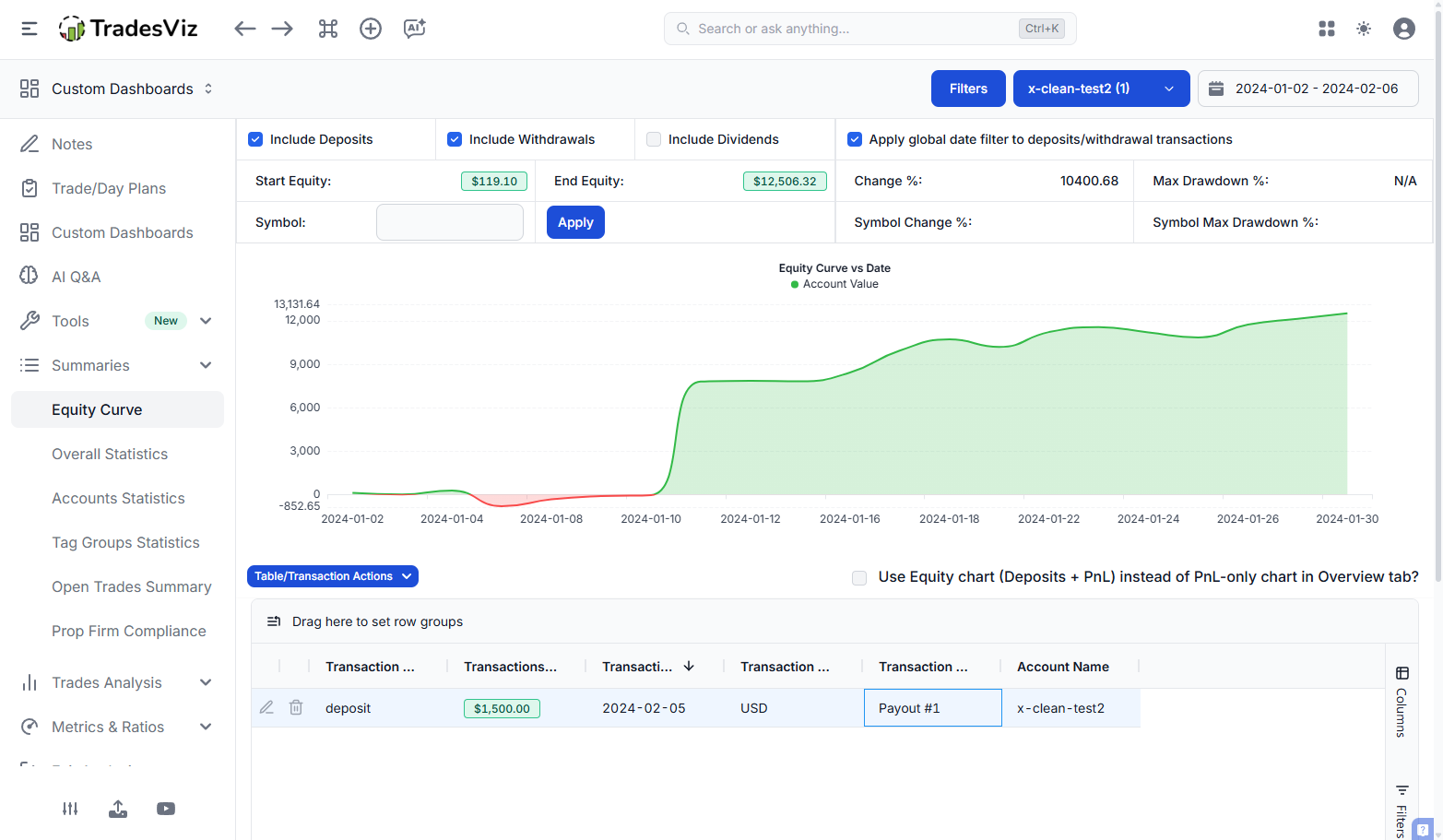
The equity curve supports comparison against a benchmark index, so you can see your funded account's net performance (after payouts) relative to the market. All deposit and withdrawal data also feeds into the account return % calculations visible in the trade explorer, calendar, and trades table. This means your per-trade account return percentages will correctly reflect the actual capital in your account at the time of each trade - critical for evaluating whether your funded account performance justifies the evaluation costs.
Why Spreadsheets and Standalone Trackers Do Not Cut It
We have talked about this in our State of Trade Journaling 2025 report: the market is full of tools that do one thing poorly and charge a premium for it. Prop firm tracking tools are a prime example.
- Spreadsheets: You manually enter P&L, calculate trailing drawdown by hand, and hope you did not make a formula error. You forget to update it for a day, and your drawdown floor calculation is wrong. Trailing-to-static-lock? Good luck implementing that in a spreadsheet.
- Third-party drawdown trackers ($10-30/month): They (poorly) track one metric - drawdown. They do not know about your actual commissions, your MFE/MAE, your consistency score, your R-value performance, or any of the other 600+ metrics TradesViz already tracks. You are paying for a fraction of what you already have.
- Mental math: You "roughly know" where your drawdown floor is. Until you do not, and you blow the evaluation on the last day.
With TradesViz, your trades are already synced from Rithmic, Tradovate, NinjaTrader, MT4/MT5, or any of the other 60+ supported platforms. The compliance engine runs on the same trade data you already use for performance analysis. There is nothing extra to set up, no extra data to enter, and no extra subscription to pay for.
Which Prop Firms Are Supported?
Here is the full list of 20 firms with pre-built profiles:
| Firm | Platform | Account Sizes | Asset Class |
|---|---|---|---|
| Apex Trader Funding | Rithmic | 25K - 300K + Funded PA (7 profiles) | Futures |
| Topstep | Tradovate | 50K - 150K + Express Funded (4 profiles) | Futures |
| My Funded Futures | Rithmic | 50K - 150K (3 profiles) | Futures |
| Tradeify | Tradovate | 50K - 150K (3 profiles) | Futures |
| FTMO | MT4/MT5 | 10K - 200K + Verification Phase (6 profiles) | Forex/Multi |
| FundedNext | MT4/MT5 | 6K - 100K Stellar 1-Step (4 profiles) | Forex/Multi |
| The5ers | MT5 | 5K - 100K Hyper Growth (3 profiles) | Forex |
| TradeDay | Tradovate | 25K - 150K (4 profiles) | Futures |
| Elite Trader Funding | Rithmic | 25K - 100K 1-Step (3 profiles) | Futures |
| Earn2Trade | Rithmic/NinjaTrader | 25K - 50K Gauntlet Mini (2 profiles) | Futures |
| Take Profit Trader | Rithmic | 25K - 150K Test Drive (4 profiles) | Futures |
| Bulenox | Rithmic | 10K - 50K Master (3 profiles) | Futures |
| UProfit | Rithmic | 9K - 50K (2 profiles) | Futures |
| OneUp Trader | Rithmic/Tradovate | 25K - 100K (3 profiles) | Futures |
| Phidias | Rithmic | 50K - 100K (2 profiles) | Futures |
| Top One Futures | Rithmic | 50K - 100K Professional (2 profiles) | Futures |
| BluSky Trading | Rithmic | 50K - 100K (2 profiles) | Futures |
| FunderPro | MT5 | 25K - 50K (2 profiles) | Forex/Multi |
| FXIFY | MT4/MT5 | 5K - 100K 1-Phase (3 profiles) | Forex |
| FundedTradingPlus | CSV/MT5 | 12.5K - 50K Experienced (3 profiles) | Multi-asset |
If your firm is not listed, let us know. Adding new profiles is straightforward, and we are continuously expanding coverage based on user requests.
Quick FAQ
Does this work with auto-synced accounts?
That is the entire point. If you are auto-syncing from Rithmic or Tradovate, your compliance status updates every time new trades are imported. No manual entry needed. For a full list of supported auto-sync platforms, see our auto-import guide.
Can I track multiple prop firm accounts at once?
Yes. Each trading account in TradesViz can have its own prop firm profile. Apply profiles to each account individually, and use the Multi-Account view to see all of them in one place with aggregate stats and per-account breakdowns.
Does the compliance engine account for commissions?
Yes. When you apply a prop firm profile, the firm's exact commission schedule is auto-filled into your trading account's commission settings. All P&L calculations used by the compliance engine are net of commissions - the same net P&L used everywhere else in your dashboard.
How accurate is the drawdown tracking?
"Real-time" drawdown tracking on any journal platform (including competitors that claim it) is fundamentally limited by how often trades are synced from the broker - usually every few minutes, not every tick. Within that constraint, TradesViz calculates drawdown accurately using the correct drawdown type for each firm, including the trailing floor adjustments that spreadsheet traders frequently get wrong.
The trading simulator Challenge Mode, however, does track drawdown on every simulator tick (1 second) - because the simulator controls the data feed. This is the only context where true real-time drawdown enforcement is possible within a journal.
What if a prop firm changes their rules?
We monitor rule changes across firms and update profiles when changes occur. When an update is available, you can re-apply the profile with one click to get the updated rules. Current profiles were last updated in March 2026. If you think we should update our rules or stats, let us know at [email protected].
Can I use a custom starting balance?
Yes. When applying a profile, you can override the default starting balance. The system will recalculate drawdown percentages based on your custom amount while keeping the firm's dollar-amount rules intact.
What Is On The Roadmap
The compliance system is fully functional today, but we are always expanding. Here is what we are working on next:
- Prop firm comparison tool: An interactive page where you can compare firms side-by-side, filtered by account size, drawdown type, and asset class. With a recommendation engine based on your actual trade data and retroactive pass rates
- Multi-day challenge sessions: Save and resume simulator challenge progress across multiple sessions for a more realistic evaluation experience
- News blackout and restricted hours enforcement: The profile schema already stores these fields - active enforcement during compliance calculation and simulator sessions is coming
Getting Started
If you are already a TradesViz user with trades synced from a prop firm account:
- Go to Account Settings and select your prop firm trading account
- Select your firm and account size in the Prop Firm Profile section
- Click Apply
- Navigate to the Prop Firm Compliance tab in your dashboard
If you want to see whether you would pass a specific evaluation based on your existing trades, use the Retroactive Evaluation section at the bottom of the compliance tab - no profile application required. Select any firm and account size, choose a rolling window if you want pass-rate analysis, and click Run Simulation.
If you want to practice, fire up the trading simulator, enable Challenge Mode, and start your simulated evaluation on real historical data.
If you are new to TradesViz and want to see what your prop firm journaling experience would look like, start with our auto-sync guide to get your trades flowing in, then come back here to apply a compliance profile.
Questions, feedback, or want a specific firm added? Reach out via the support chat or email us at [email protected].