If you are familiar with TradesViz, you might have used the notes tab which collects and organizes all your notes in one place. This was first introduced in 2020 when we launched TradesViz.
Like notes, certain pieces of data can be attached to a trade. These are tags, images, charts, and, trade plans.
It's already possible to view tags in a lot of dedicated sections like the tag charts, tag group analysis, and even the trades table. Charts and images can be viewed in the unified view and also in the charts view.
All of these tabs exist so that you can view the data you have in your journal in any way you prefer. Trade/day plan only has the trade plans analysis tab and it's not possible to do any editing operation there. That's why we created the dedicated trade/day plans tab.
Introduction
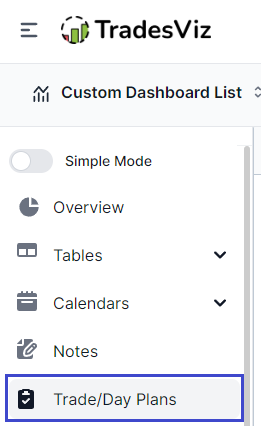
You will find the trade/day plans tab right below the notes tab in your main dashboard:
Once you visit the trade/day plans tab, you will find a UI that is very similar to the note tab.
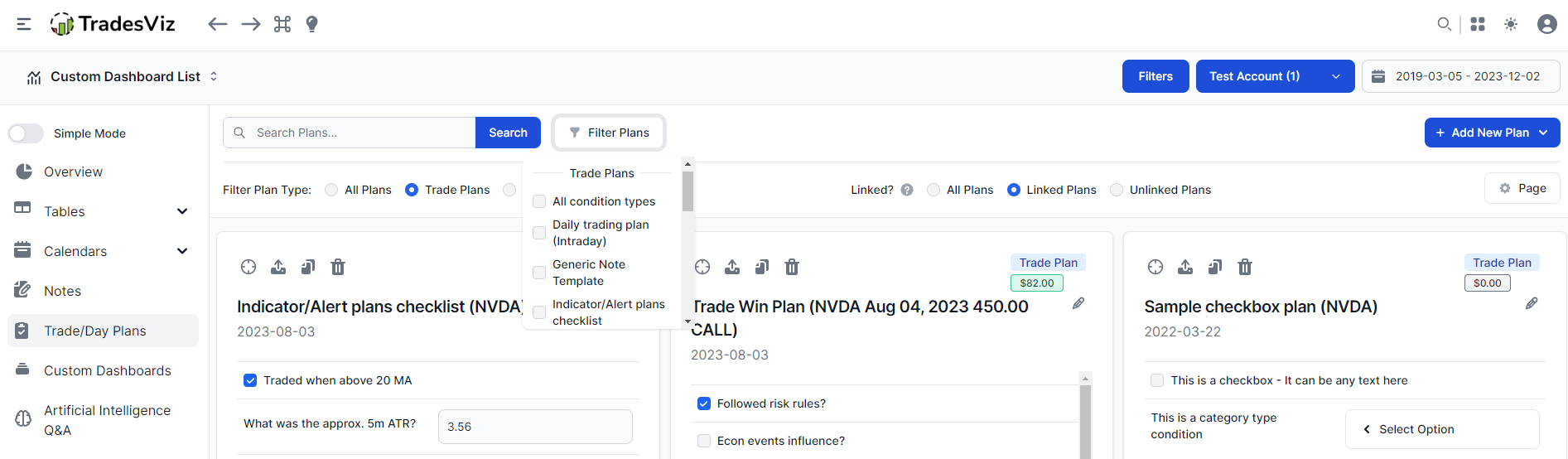
At the top, you will see features/options to:
- Search for any plan based on the plan's content: Use the search box to search for plans containing the search text. The system uses both the condition titles and your inputs as part of the search so technically, you can even search for individual conditions that are part of any plan.
- Filter for any plan based on the plan's type, link state, and plan name: Each plan can either be a trade or a day plan - this can be filtered. Also, each plan has to be an instance of an already created plan via account settings. For example, if you are looking for a plan related to a specific strategy, you can do that via the filters dropdown. Plan linking will be explained in a separate section below.
- Add a new trade/day plan (even before trading a trade!)
- Set the page size, length, etc.,
Once you scroll down, you will see a grid of plan objects - each section has the plan name, conditions, buttons to do certain actions, and labels to indicate what type the plan is. We will explore each of these sections in-depth.
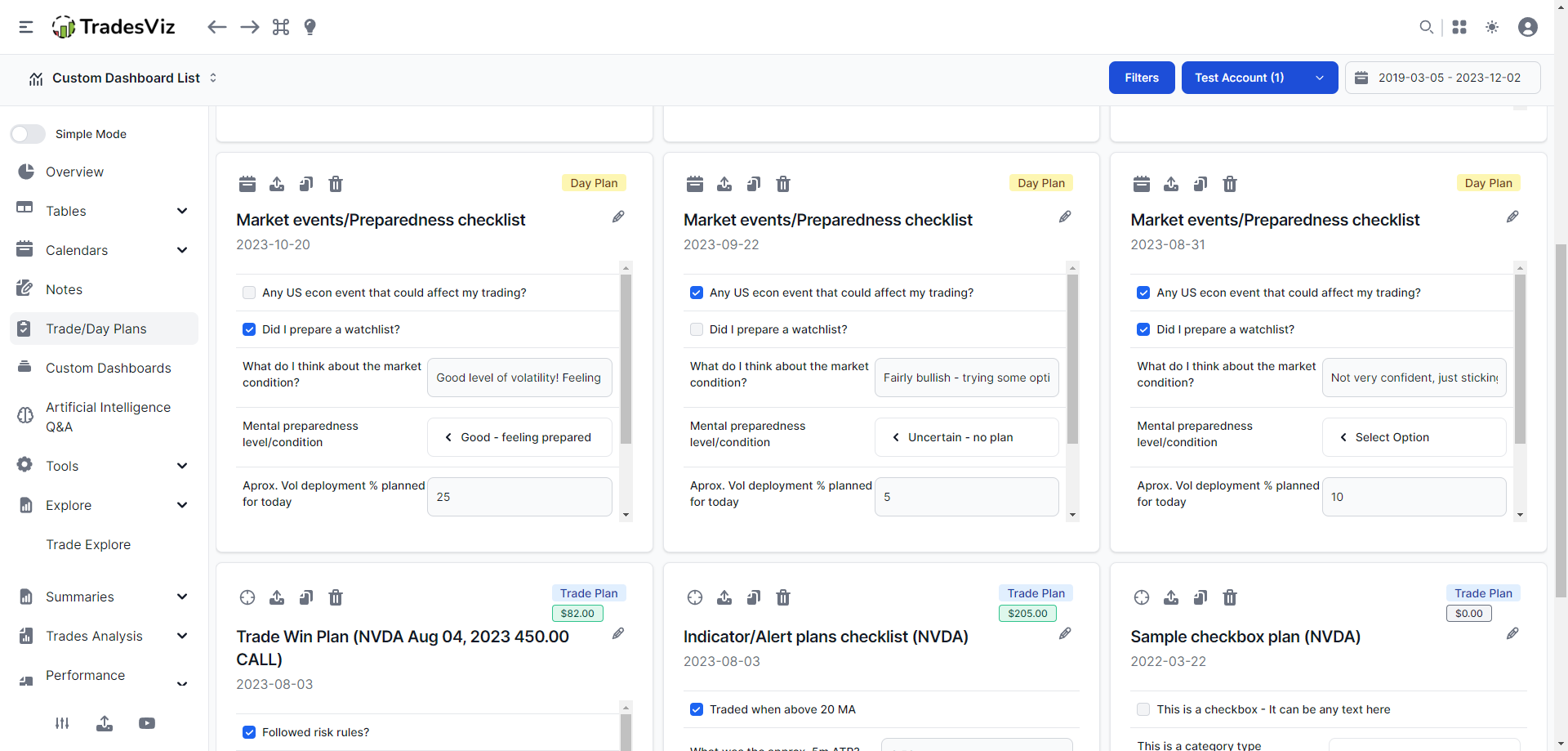
This tab will contain ALL the plans for all the trades that are a result of the currently applied global filters and ALL the day plans for the days in the global date range.
Plan Instance Design
Here's how each section of the plan instance is designed:
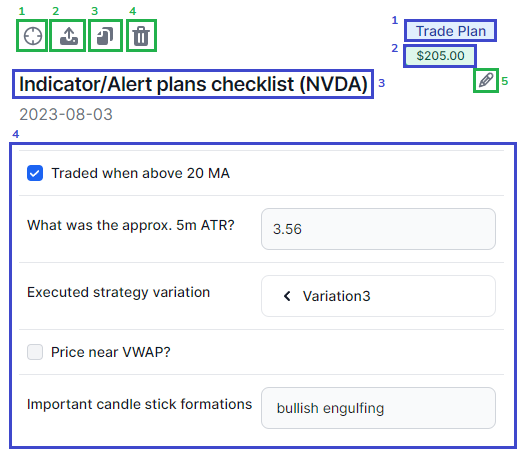
The green boxes/text are the actions you can do with the current plan (numbered in images corresponding to the numbered list below).
- Clicking on the target (for trade plan)/calendar (for day plan) icon will take you to the trade/day explore page.
- Clicking on the save button will save the changes made to the plan's settings. You need to click on this for the system to save your changes.
- Clicking on the copy icon will copy the current note and add it to the notes tab as an unlinked plan (more on the unlinked plan below).
- Clicking on the trash icon will remove the plan instance (it will be removed from the trade/day if it's attached but it will NOT delete the trade/day info).
- Clicking on the pencil icon allows you to edit the plan's title so that you can organize and view the plans the way you want.
Apart from the buttons, there are other elements:
- Every plan instance will have either "trade plan" or a "day plan" as a tag.
- You will see the total PnL of the linked trade (this is added as a minor QoL improvement to the notes section also).
- Every plan will have a title. By default, it is the plan's original name (i.e. name of the plan when you select/create it).
- Finally, all conditions can be fully edited, and make sure you click on the save button at the top left corner to preserve the changes.
Unlinked Plans: Add trade plans before trading a trade!
One of the highlight features of this tab other than displaying all your plans is the ability to add plans *before* you make a trade. This was previously not possible and you had to attach a plan to a trade only AFTER a trade is made (this does not apply to a day because a day exists on TradesViz whether you trade on it or not).
For example, if you are in the middle of a trade or if you are just about to take a position, head over to your trade/day plans tab on TradesViz, click on "Add plan" and add a plan. This will create an "unlinked" plan. What is an unlinked plan?
At this point, you would not have your trade in your journal yet, but we can still add the plan. Once you add an unlinked plan, here's how it would look in your trade/day plans tab:
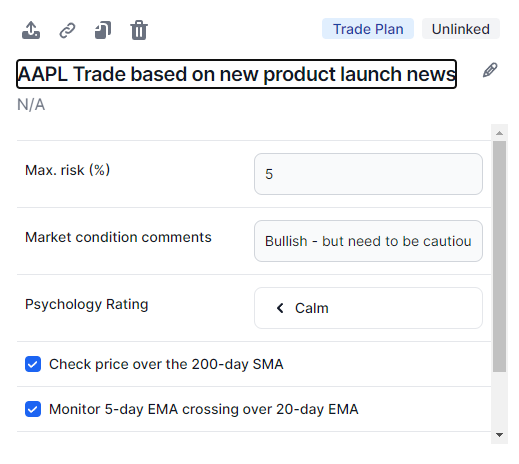
Everything looks pretty much the same as a normal attached plan except for a few things:
- Instead of a target/calendar icon, you now have a link icon which upon clicking will show you the 30 most recent trades to which you want the plan to be linked to
- Instead of PnL, the plan will show "Unlinked"
- The date will not be shown as it's not linked to anything yet
Now that you have this data in your journal, you don't need to worry about not recording your mental/emotional state during trading It can later be linked and analyzed with full details via the trade plans/analytics tab.
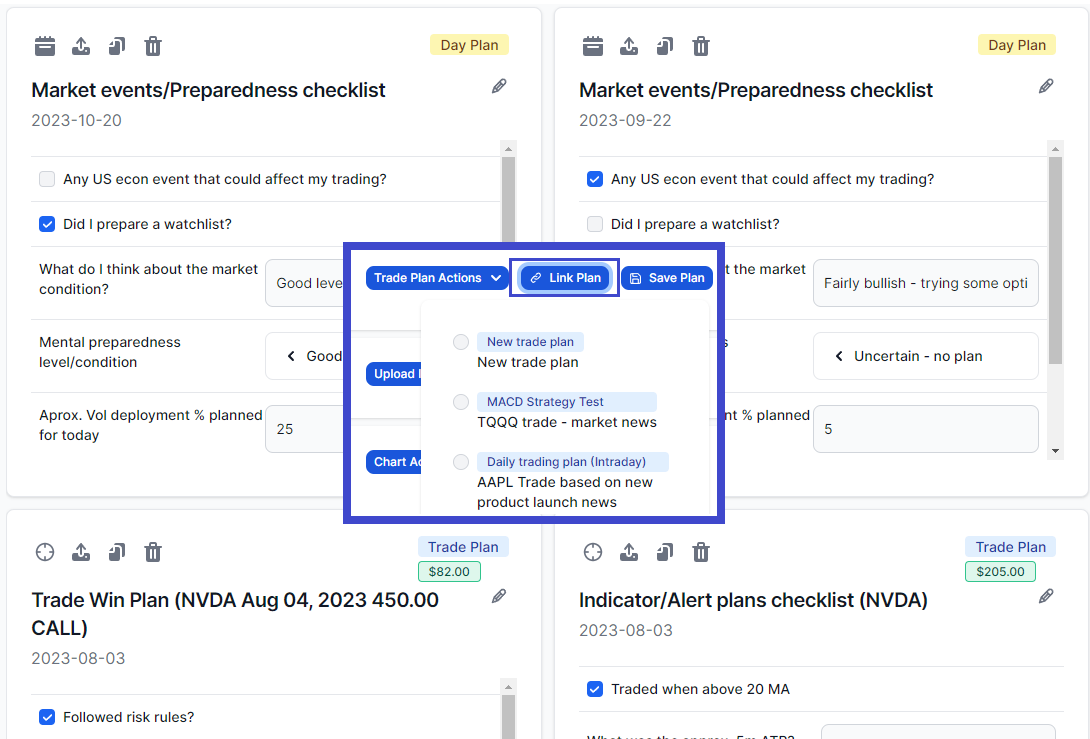
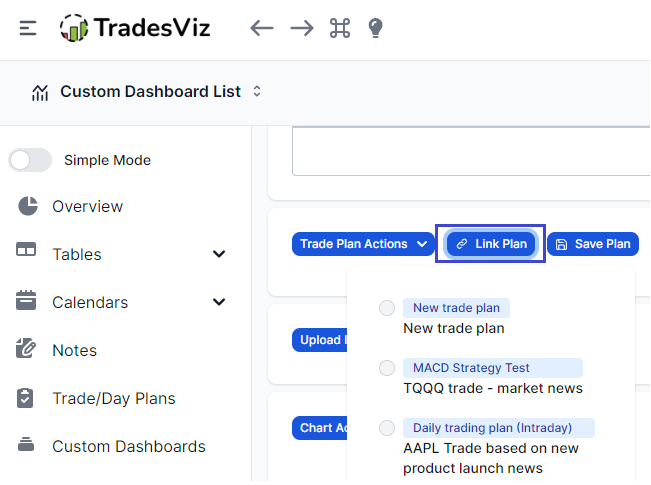
After importing your trades, you can visit the trade you made via the trades table and attach the plan by clicking on "Link plan" in the trade explore page's trade plans section. This will show all unlinked trade plans:
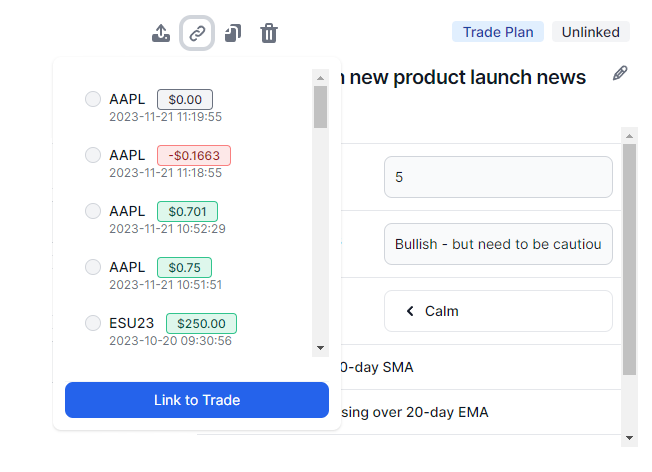
You can also link to a trade from the plans section itself by clicking on the link button in the plan in the trade/day plans tab. This will show a list of the 30 most recently made trades.
Notes about the linking process:
- It is only possible to link a trade plan to a trade and a day plan to a day. Plan types cannot be mixed when linking.
- Unlinked plans do not contribute to any stats.
- You can link a trade/day plan to a trade/day that already has a plan. In this case, it will make the already-linked plan of the trade/day unlinked and link it to the plan you are just attaching. You will be able to see this newly unlinked plan in the trade/day plans tab.
The trade/day plans that were launched in 2023 have changed how traders perform analysis. At the moment, this is the apex of trade analysis - the most detailed, flexible, and limitless combinations of conditions that can be analyzed and correlated make this the most powerful analytics feature in a trading journal in the world.
With the trade/day plans tab, all we did was make this powerful feature more manageable to all traders. Just like how the notes tab drastically increased the usage of notes in TradesViz compared to other journaling platforms - even if notes have been a universal feature of all journaling tools. We hope the same happens for trade plans. What traders need in this world of information overload is to be able to efficiently navigate their own ocean of data. This is what TradesViz does best.
Let us know if you have any questions or feature requests by emailing us at [email protected].
Sep 2026 Update: Plan adherence stats
Since it launched, this tab could show you every plan you have ever filled in. What it could not tell you is whether filling them in was doing anything for you. That answer now sits at the top of the tab, above the search box, as a row of five figures.
- Coverage: how many of the trades in your current filters have a plan attached at all.
- Adherence: of the checkbox rules your plans actually answered, how many you kept.
- Rules that pay: conditions where keeping the rule beat breaking it by a wide enough margin to be worth reporting.
- Rules that cost: conditions where keeping the rule made your results worse.
- Planned vs not: your average PnL per trade on planned trades, minus the same figure on unplanned trades.
The strip is scoped to the dashboard filters you already have applied, and to closed trades. The "Ignore global filters" toggle further down still works exactly as before for the plan cards, so an unlinked or out-of-range plan stays visible for editing. The strip itself stays scoped, because coverage and adherence measured over an unbounded date range would not tell you anything you could act on.
Answered is not the same as broken
This is the idea the whole feature rests on, and it is worth a minute of your time.
A checkbox in a plan has three states, not two: ticked, un-ticked, and never answered. That third state is real, and it happens constantly. You add a new condition to a template today, and every plan you filled in over the past year now contains a condition those trades never had a chance to answer. Or you attach a plan to a trade meaning to come back and fill it in properly later.
The adherence figures count only the conditions a plan actually answered. A rule you added last week does not retroactively show up as a rule you broke a hundred times, and a plan you have not filled in yet does not report as zero rules followed. The strip shows the unanswered count right next to the answered one, so you can see at a glance how much of your checklist is still waiting on you.
If you have plans that predate this update, nothing about their numbers changes. Older plans are read exactly the way they always were, so your historical adherence does not quietly rewrite itself the day you load the tab.
Every rule is scored inside its own template
A reasonable thing to wonder when you see a single "Rules that pay" number: if you have six different plan templates, each with its own set of checkboxes, what is actually being compared against what?
Each condition is scored strictly within the template it belongs to. If two of your templates both happen to contain a checkbox called "Stop loss placed immediately after entry?", those are two separate rules with two separate results. They are never merged, and neither is compared against the other. A rule is only ever measured against the other trades that used the same plan.
That is the only way the comparison means anything. The trades you take under a scalping template and the trades you take under a swing template are different populations, and a rule that pays in one may be irrelevant in the other.
When you see a dash instead of a number
"Rules that pay" and "Rules that cost" show a dash rather than a number until at least one of your rules has enough trades on both sides to compare: the trades where you kept it, and the trades where you broke it. A rule you have kept on 40 trades and broken on 2 cannot tell you anything yet, no matter how those 2 trades went.
The subtitle under the dash tells you what is missing, along with how many rules are being tracked and across how many templates. If that count is spread thinly over a lot of one-off templates, the fix is usually to settle on fewer templates and use them more, rather than to keep adding conditions.
We would rather show you a dash than a zero here. A zero would read as "none of your rules work", which is a very different statement from "we do not have enough of your data yet to say".
These same numbers also feed your AI Coach trading review, which will now surface plan findings alongside everything else it looks at: the rule you skip that works, how much of your book has no plan attached, and conditions that are not separating anything and are worth deleting from the template. That last one matters more than it sounds. Nobody prunes their own checklist, so plans grow to twenty conditions and then quietly stop getting filled in. A plan you will still be completing next month beats an exhaustive one you abandon next week.