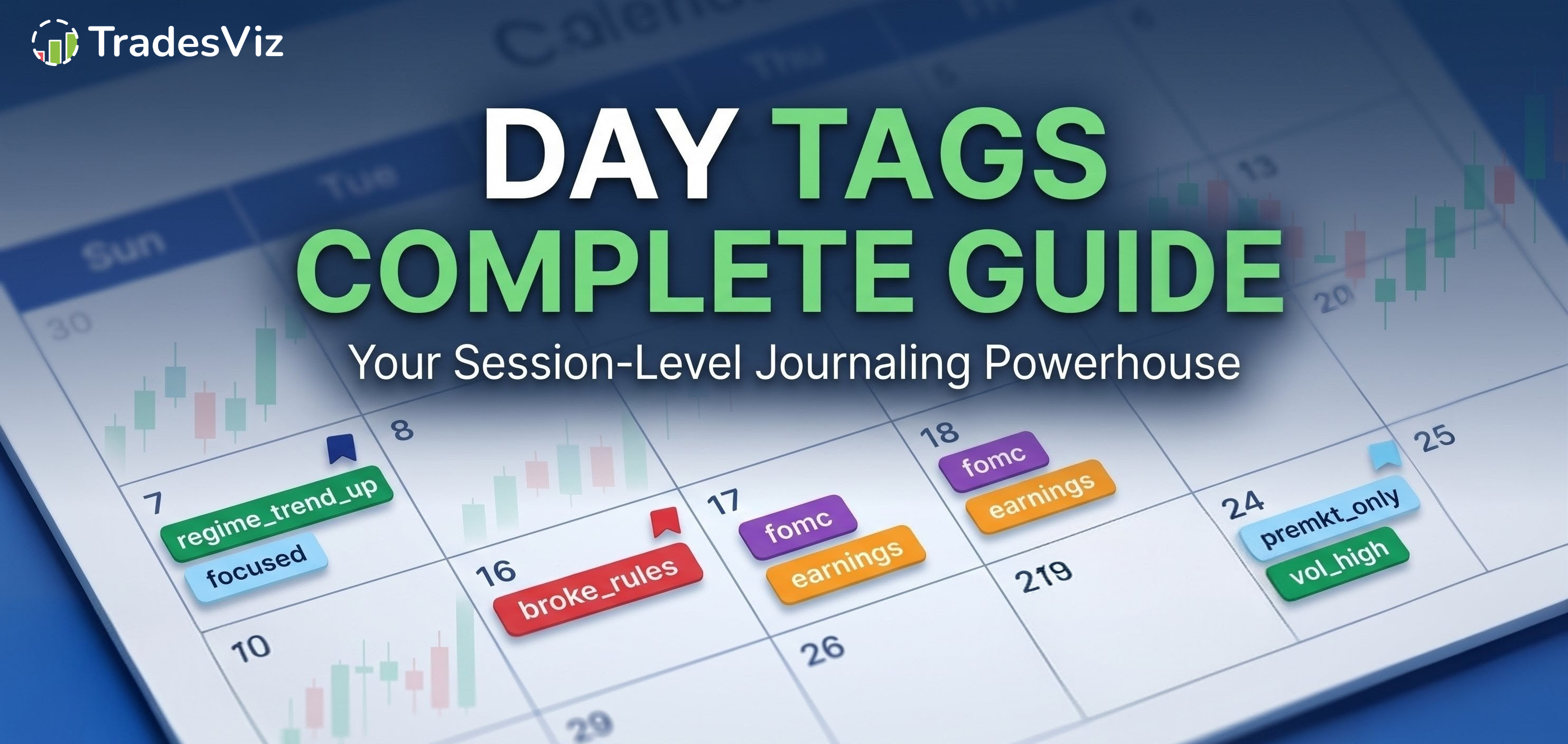
We've always pushed tags as the most important qualitative data point in TradesViz. With the recent addition of day tags and day tag groups, the same level of analysis you can do on individual trades is now possible at the trading day level too.
This blog post is a complete guide to day tags - what they are, how to use them, where they show up in the dashboard, and how to actually get value out of them as a trader. If you have not already, we suggest going through our trade tags complete guide first because most of the rules and conventions are the same.
Why have a separate tag system for days? Because some things you want to track simply do not belong to a single trade. Market conditions, news events, your mental state, sleep, whether you followed your rules or not - all of these apply to the entire session. If you put them on every trade as trade tags, you end up duplicating data and you cannot ask simple questions like "how many days did I trade FOMC?".
What are day tags?
A day tag is a short label attached to a single trading day in a trading account. Just like trade tags, you do not need to pre-create them anywhere. The moment you type a new day tag and save it on a day, that tag exists in your account and will start showing up in auto-suggest dropdowns the next time you start typing.
Some common categories that traders use for day tags:
- Market regime: trend_up, chop, high_vol, low_vol, gap_up, gap_down
- News/event days: fomc, cpi, nfp, earnings_AAPL, opex
- Mental/physical state: focused, tired, tilted, well_slept, distracted
- Process adherence: followed_plan, broke_rules, overtraded, no_trade_day
- Session type: premkt_only, open_drive, afternoon_only
The same naming guidelines from the trade tags guide apply here too: keep them short, atomic, alphanumeric, and consistently ordered (so regime_trend, regime_chop, regime_range all share a prefix and can be wildcard-searched as regime_%).

How to add, modify, and delete day tags
Day tags follow the exact same lifecycle as trade tags:
- No central registration is needed. Type a new day tag, save the day, and it is part of your account.
- Existing day tags appear as auto-complete suggestions in any day tag input.
- A day tag exists in your account as long as it is attached to at least one trading day.
- To remove all instances of a day tag, you can visit your account settings > remove tags > enter tagas to be removed for Day tag type.
Ways to add day tags to a day:
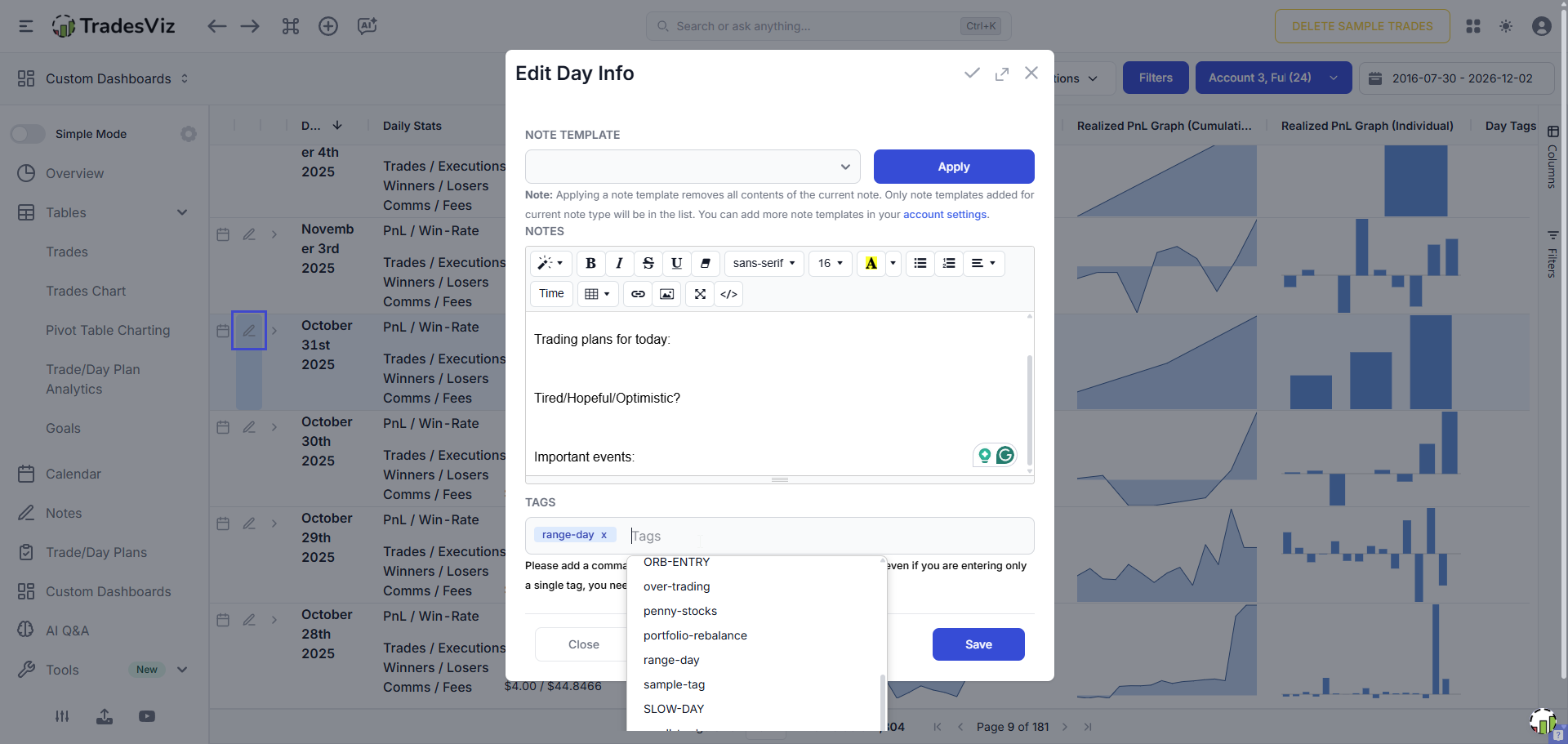
- Open any day from the calendar, daily view, or trades table to go to the day explore page. The day tags input is part of the day's notes/tags section. Type a tag, press Enter or comma, and save.
- You can also quick-edit a day's tags directly from the daily view or group by day table without opening the full day explore page.
- Unlike trade tags, it is not possible to pre-create day tags. They will only exist if you add a tag to any trade - no extra management needed.
Ways to modify day tags:
- Edit them directly on the day explore page.
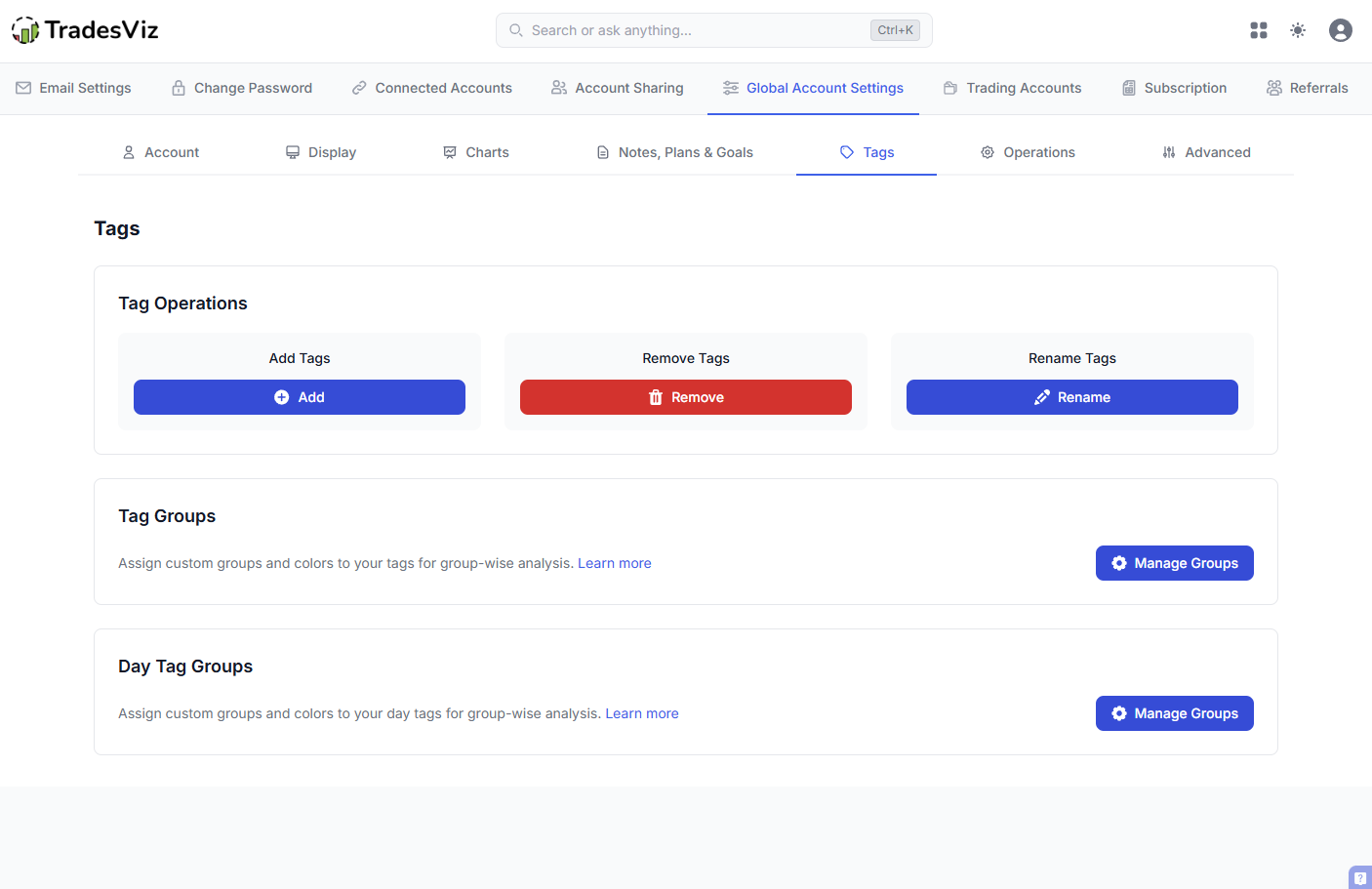
- Use the "Rename day tags" function in your account settings to rename a day tag globally across every day it is attached to.
Ways to delete day tags:
- Remove the tag from each day it is attached to.
- Use the "Remove tags" function in your account settings to wipe a day tag entirely from your account in one go.
- Note: deleting all trades on a day does not automatically delete the day's tags. The day record (with its tags and notes) persists independently. This is intentional - a "no trade" day is still a meaningful day to tag.
Day tag groups
Just as trade tags can be organized into tag groups, day tags can be organized into day tag groups. A day tag group is a named bucket (for example: Market Regime, Mental State, News Day) that contains a set of related day tags.
Day tag groups are managed from the same area as trade tag groups - Account settings > Tag management. There is a dedicated section for day tag groups right next to the trade tag groups section, with the same UI: create a group, pick a color, drag day tags into it.
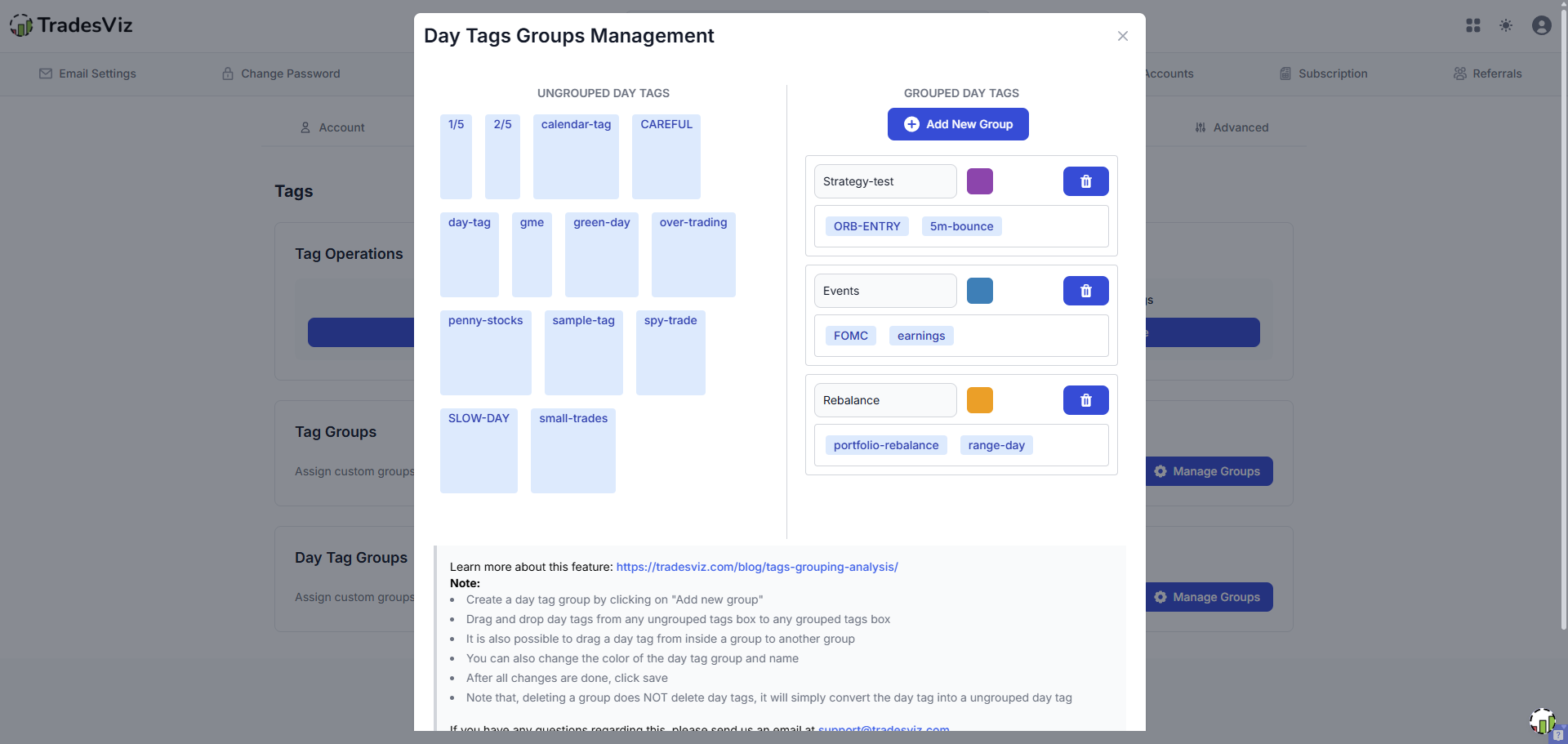
An example grouping that works well for a discretionary day trader:
- Market Regime: trend_up, trend_down, chop, range
- Volatility: vol_low, vol_normal, vol_high, vol_extreme
- News: fomc, cpi, nfp, opex, earnings_week
- State: focused, tired, tilted, distracted
- Process: followed_plan, broke_rules, overtraded
Filtering by day tags and day tag groups
Day tags and day tag groups have their own filter pills in the global filter bar, separate from trade tag filters. We did this on purpose so you can combine trade-level and day-level qualitative filters in a single query.
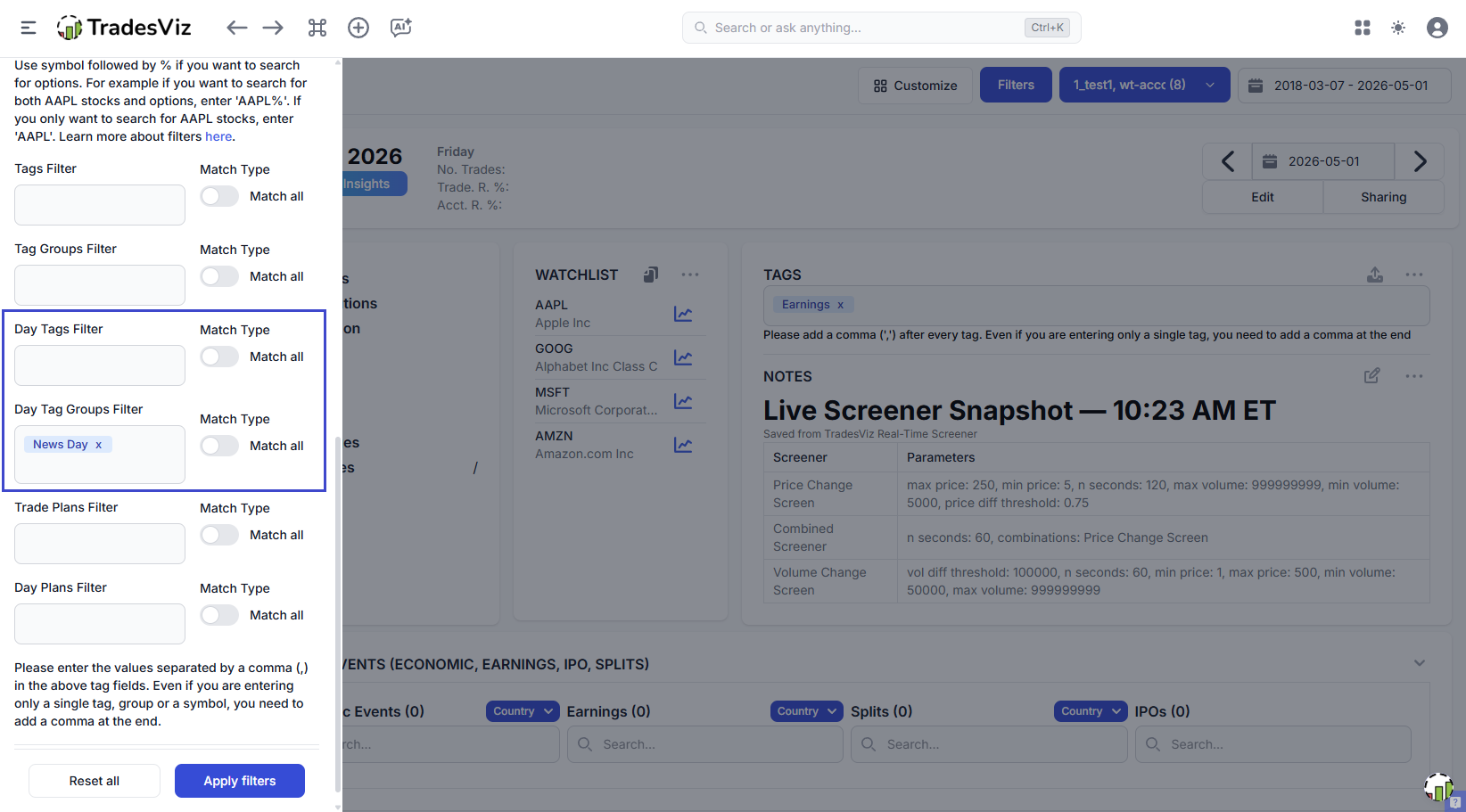
All the filter syntax from our efficient filtering guide works here too:
- fomc,high_vol - days tagged with both fomc AND high_vol
- fomc/cpi/nfp - days tagged with any of fomc OR cpi OR nfp
- !tilted - exclude any day tagged tilted
- regime_% - any day tag starting with regime_
Some example combinations you can build because trade tag and day tag filters are separate axes:
- Trades tagged S_MACD on days tagged regime_trend_up - how does the MACD strategy perform only in trending markets?
- All trades on days in the News day tag group - news-day performance across every event type at once.
- Days tagged followed_plan vs. broke_rules - probably the simplest discipline report you can build.
Where day tags and day tag groups show up
Day tags are first-class data in TradesViz. They show up everywhere day-level data is shown:
Day Explore
The main place for per-day qualitative review - tags, notes, day plan, and the day's trades all on one page. Filter the dashboard down to a specific day tag and the day explore page essentially becomes a curated journal of just those days.
Calendar and Daily view
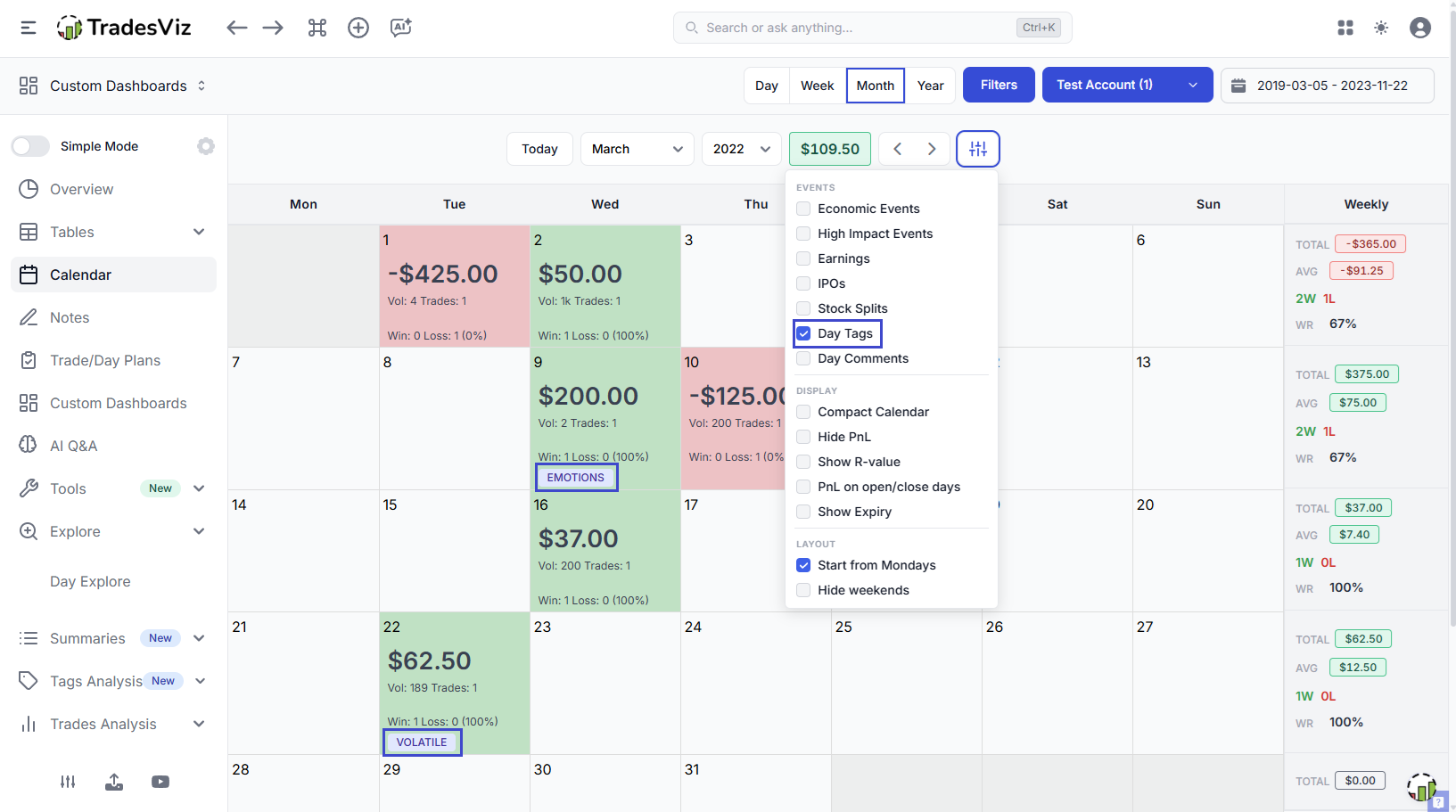
Day tags show up as colored chips on each day cell, using the day tag group's color where applicable. At a glance you can see the qualitative shape of your month - a sea of red broke_rules chips on red P&L days tells you a lot about what to fix.
Day tags and day tag group charts
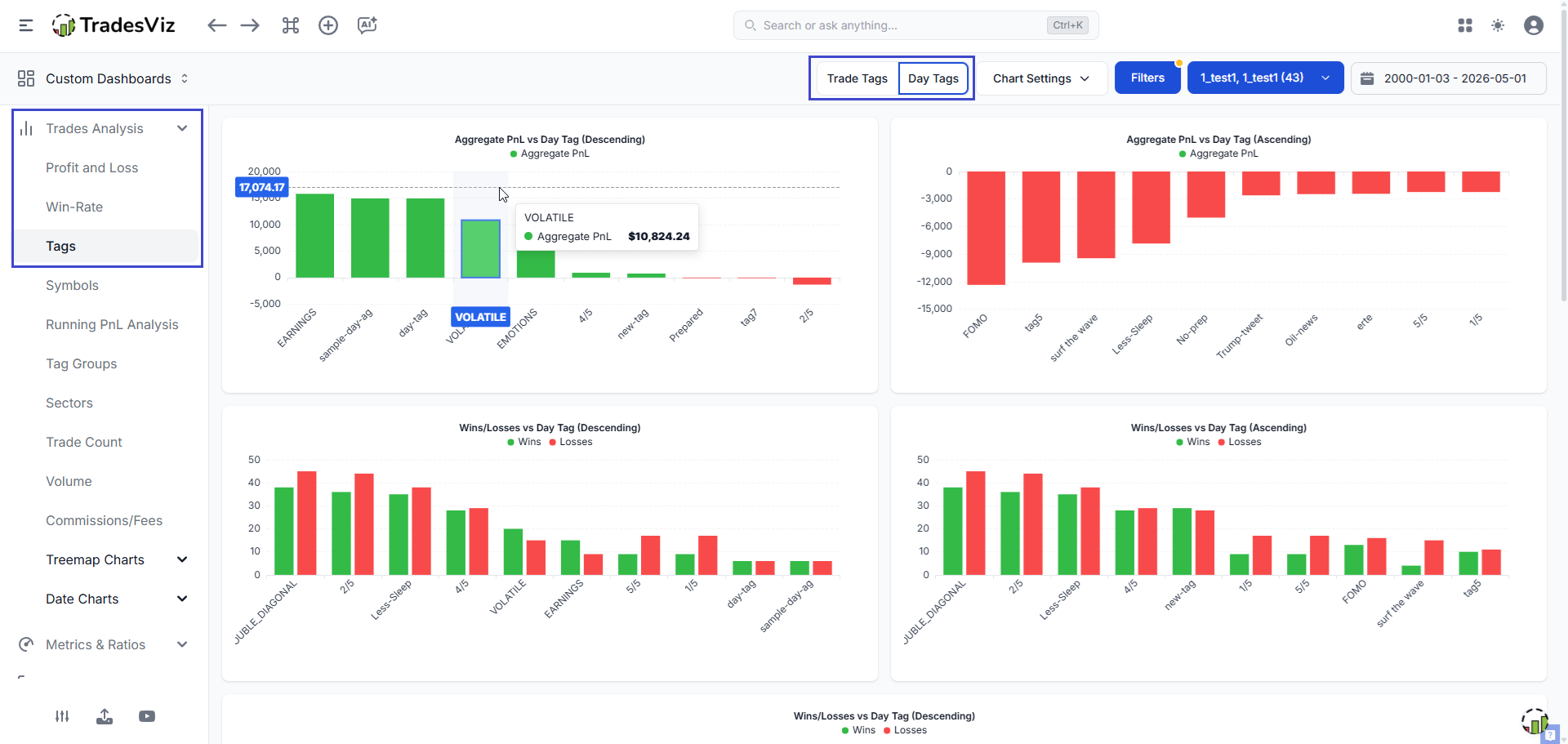
Under Trading performance analysis, in addition to the trade tags / trade tag groups chart sections, you have dedicated Day tags and Day tag groups chart sections. These show:
- PnL, win rate, expectancy, and trade count aggregated by day tag
- Top and bottom day tags by PnL and by win rate
- Day tag group breakdowns - which group's tags drive the biggest swings in your equity
- Cumulative PnL overlays for selected day tags (for example fomc vs. non-fomc equity curves)
Day tag group summary
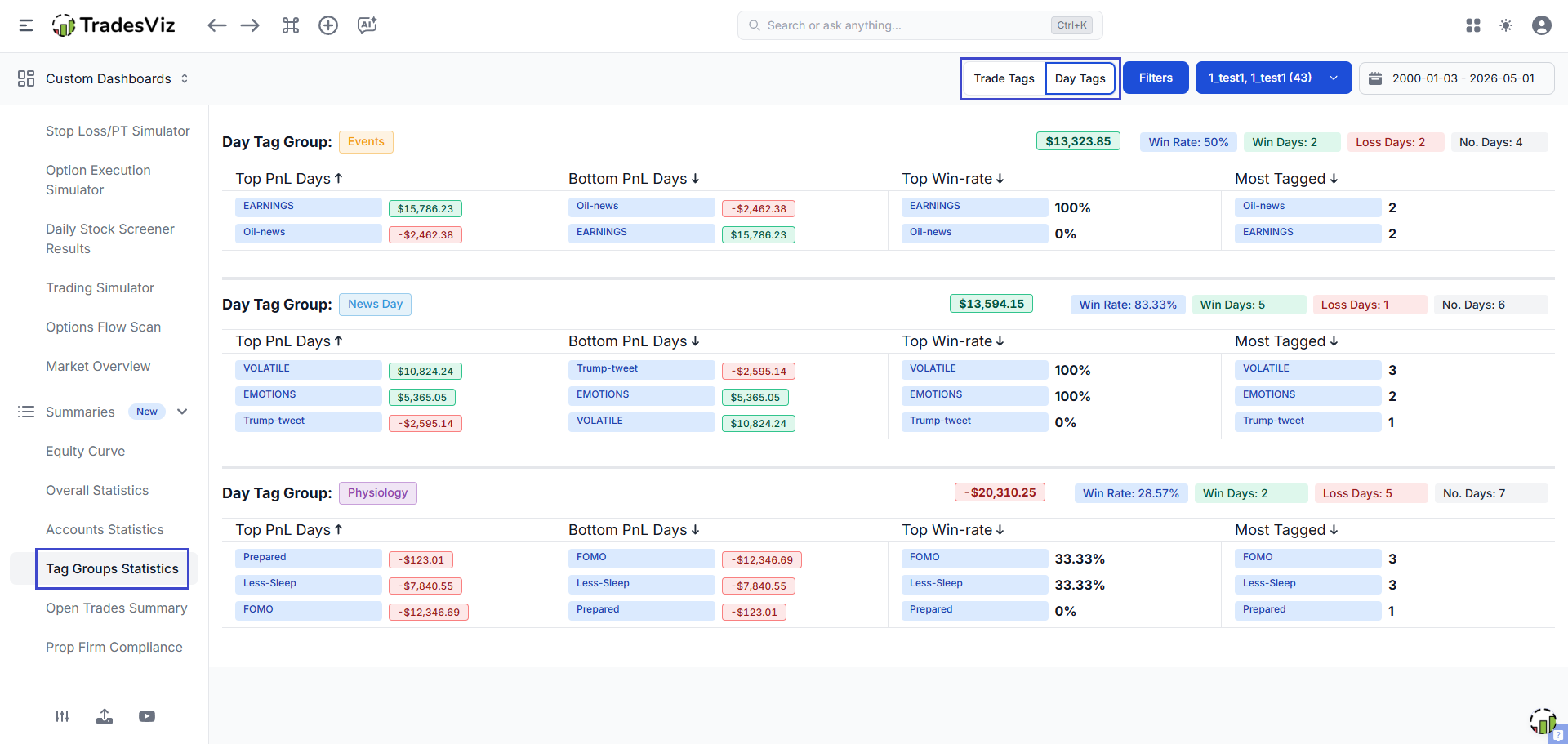
This is the day-level version of our tag group summary tab. One section per day tag group, showing the group's overall stats and the top/bottom day tags within that group by PnL and win rate. This is usually the fastest way to find the highest-value qualitative finding of the month - for example: "in the State group, tired days are -68% of my net PnL".
Pivot grid
Day tags and day tag groups are selectable as both rows and columns in the pivot grid. This opens up unlimited cross-tabulations, for example trade tag rows by day tag columns showing PnL, or day tag group rows by symbol columns showing win rate.
Normal grids
The day-level grids include day tag and day tag group columns - sortable, filterable, and groupable just like any other column.
AI Query and AI Daily Summary
Both AI features know about day tags and day tag groups as queryable dimensions. You can ask things like:
- "Compare cumulative pnl on days tagged fomc vs days tagged cpi"
- "Show win rate by day tag group State"
- "Average R-value of S_MACD trades on days tagged regime_trend_up"
The AI daily summary uses your day tags as part of its qualitative context when generating actionable insights. The more consistently you tag your days, the better the daily insights become.
Trade tag vs. day tag - how to decide
A simple rule of thumb when you are not sure where a label belongs:
| Question to ask | Use a... |
|---|---|
| Does this label describe the entry/exit/setup of one specific trade? | Trade tag |
| Would this label apply identically to every trade taken in the same session? | Day tag |
| Is this about your mental/physical state for the whole session? | Day tag |
| Is this about a market or news event that defines the day? | Day tag |
| Is this a strategy or pattern name? | Trade tag (group it under a strategies trade tag group) |
| Did you follow your rules / overtrade / hit a daily loss limit? | Day tag (group it under a process day tag group) |
Picking the right axis matters because every chart, summary, and filter respects the separation. If you put fomc on every individual trade, you will end up polluting your trade tag analytics with what is actually a day-level attribute, and you will lose the ability to ask "how many days did I trade FOMC?" cleanly.
A simple end-of-day workflow
Here is a quick routine that takes about a minute and adds up to a lot of useful data over time:
- Open today on the day explore page.
- Add 1 tag from each of these day tag groups: Regime, Volatility, State, Process.
- If it was a news day, add the relevant tag from the News group.
- Save. Done.
After about 20 trading days you will have enough data to run your first day tag group summary and find something genuinely useful - usually a state that is costing you money, a regime where your edge disappears, or a process habit you did not realize was hurting you.
Some common pitfalls
- Tagging inconsistently. A day tag is only useful if you apply it on every relevant day. Pick a small fixed vocabulary and stick to it for at least a month before extending.
- Overlapping vocabularies between trade and day tags. If high_vol exists as both a trade tag and a day tag, you will eventually confuse yourself. Pick one axis per concept.
- Too many groups. 4 to 6 day tag groups is plenty. More than that and you will skip the journaling step.
- Tagging from memory days later. Tag the day before you close TradesViz for the evening, not three days later when the context is gone.
Day tags and day tag groups are the environmental layer of your journal. Trade tags tell you what you did. Day tags tell you the conditions you did it under. Used together, you get a much more complete picture of your trading than either one on its own.
Related reading:
- Tags complete guide (trade tags)
- Tag grouping & analysis
- Tag group charts & summary
- Day Explore tab
- Efficiently filter trades
- Advanced AI journaling guide
Have feedback or feature requests around the day tags system? Drop us an email at [email protected]. If you are not on TradesViz yet, you can try it free for 7 days.