In this post, we will explore how to pair your TradesViz account with TastyWorks.
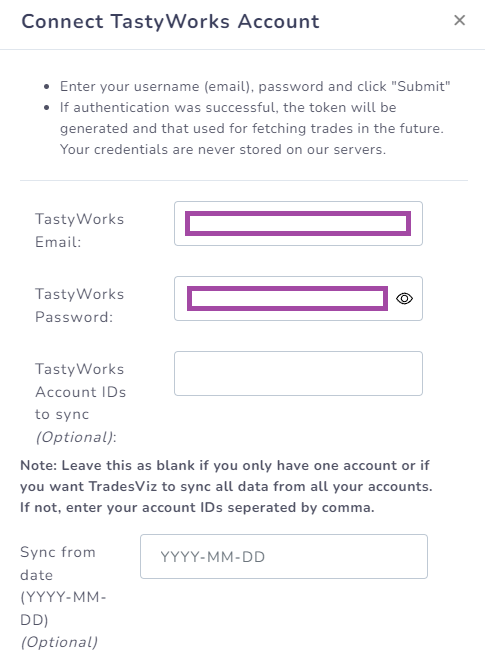
Once you select your trading account and broker as "TastyWorks" on the trade auto-import page, a popup box will appear when you click on the "Connect account" button.
On the auto-import page, once you select your trading account and broker as "TastyWorks/TastyTrade (NEW)" on the trade auto-import page, a popup box will appear when you click on the "Connect account" button.

- Click on the link in the instructions in the popup box shown in the picture above.
- This will redirect you to a secure TastyTrade webpage where you need to enter your credentials to authenticate that you are the user of the TastyTrade account. Note that we have no access to any information in the subsequent pages after you click on the link in the instructions - all actions are done via TastyTrade's secure pages. You can check the URL in the browser to verify this.
- Fill in your login information, and finally, you will be redirected to the TradesViz page with a code after successful login.
- On this page, you will have to copy the code and paste it into the popup box shown as the first image in this blog post.

5. Once you return to the tradesviz.com's import page, click on the "Auto-import trades" tab, follow the same instructions of selecting the trading account and brokerage platform (TastyTrade) and now paste the code in the text field along with the account number of the account you want to sync.
Once the connection is established, you will be able to see the TastyWorks entry in the connection list and you can click on "Sync" to get your data.
That's it! You are now connected to TastyWorks and your trades will be auto-synced every 24 hrs! You can change the advanced import settings and turn on or off the auto-sync by clicking the auto-import settings on the same import page.
If you have any questions regarding your connections, please contact us at [email protected]!