Already have a stock and a holding period in mind? Open Seasonality, select the symbol in Returns, and use Seasonal window to compare those dates across past years. Enter dates or drag a selection on the full-year chart. The summary, yearly paths and annual results all describe that window.
This guide follows the current Returns tab, updated October 2, 2026. Seasonality is included in Platinum. Stock and ETF coverage includes the US, India and Canada; available history varies by symbol.
Analyse a window for a stock you already follow
- Select a symbol at the top of Returns. Its seasonal window loads automatically.
- Set Entry (MM-DD) and Exit (MM-DD). These are the month and day to compare in each historical year.
- Set History years, from 1 to 20. Enter 15 for a 15-year comparison.
- Select Analyse window after editing the fields. Alternatively, drag across the Full-year seasonal pattern, then drag either edge of the selection. Releasing it applies the dates automatically.
For example, select CBOE.US, enter 10-02 to 12-02, and set history to 15. This asks how CBOE performed from October 2 to December 2 in each usable year. These are example settings, not a claim that those dates are its best window. For a window crossing New Year, enter an earlier calendar date as the exit, such as 11-15 to 02-15.
While a new range loads, an Updating window... indicator appears over the full-year chart. Previous results stay in place and are dimmed until the update completes. You can adjust the selection again while it loads; the latest request determines the displayed results.
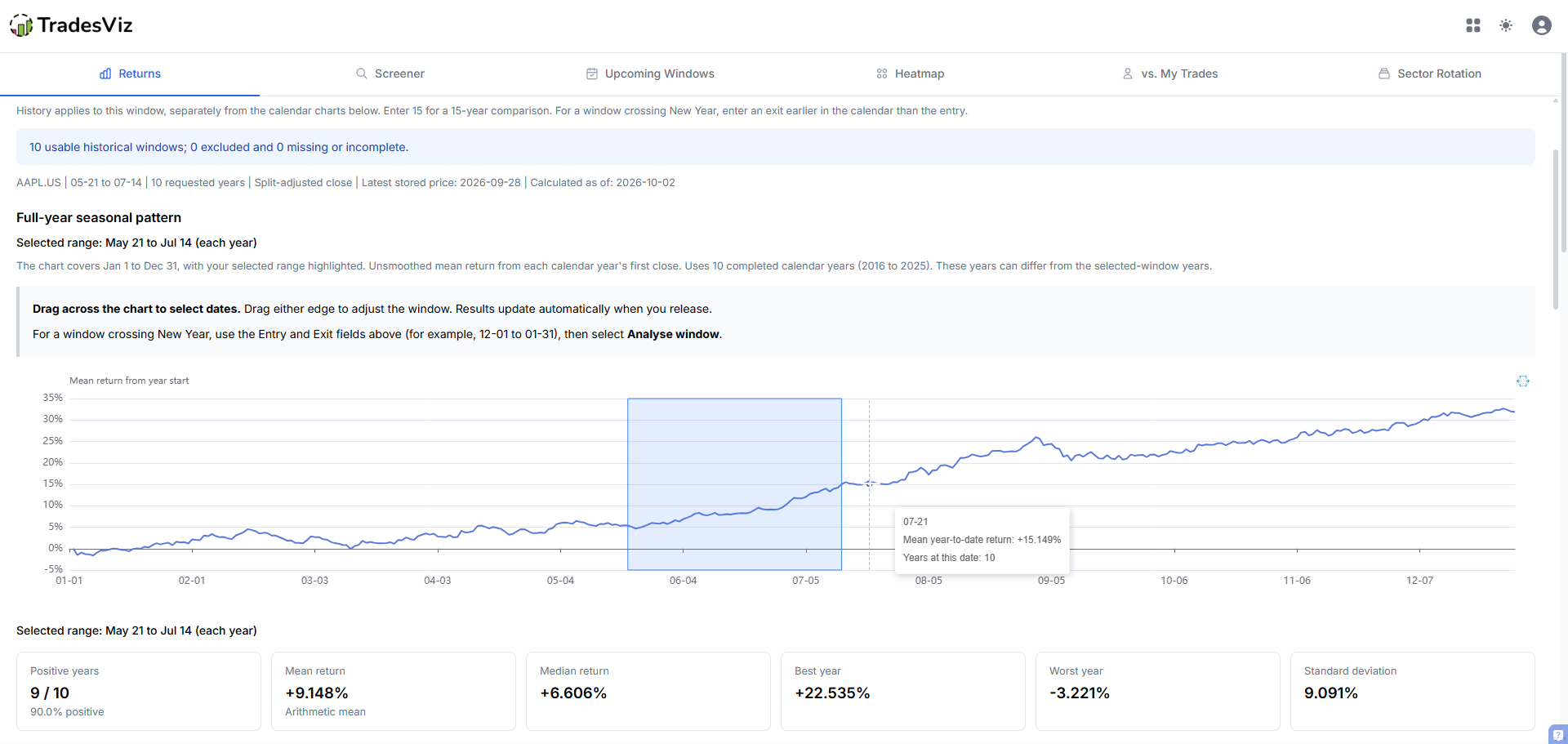
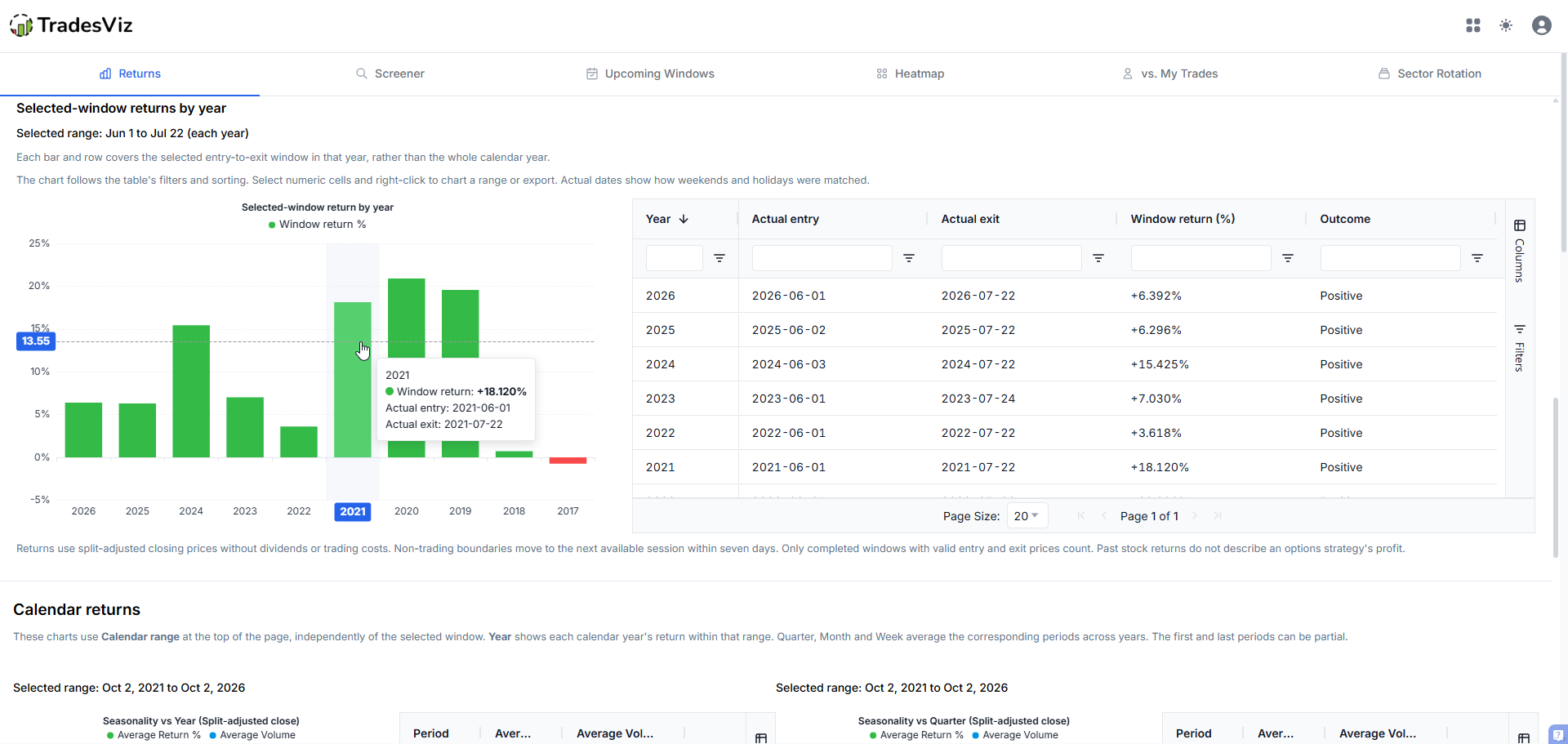
The screenshots below show AAPL.US on October 2, 2026. We start with May 21 to July 14, then change the selection to June 1 to July 22. Each section's Selected range label identifies the dates behind its results. Select an image to open it at full size.
Two date controls, two questions
| Control | What it changes |
|---|---|
| Calendar range and the history preset at the top | The yearly, quarterly, monthly and weekly calendar charts further down the page. |
| History years, Entry, Exit and Exclude years under Seasonal window | The exact-window analysis, including its full-year context and annual outcomes. |
You can use a five-year calendar range and a 15-year window analysis at the same time. Check the window's context line and usable-year count when comparing results.
Read the full-year seasonal pattern
This chart shows the arithmetic mean change from each completed calendar year's first close. It helps you locate a period to investigate within the wider year. It is not a forecast price path, and its highest point does not automatically identify the best trade.
The overview uses completed calendar years. A completed June-to-July window from the current year can be available for the window analysis even though that year is not yet included in the full-year overview. The note above the chart lists the years used.
What does the selected-window chart tooltip mean?
Each yearly line starts at 0% on that year's actual entry close. A tooltip showing +6% means the stock closed 6% above its entry price at that point. It does not mean the stock rose 6% that day. The horizontal axis counts calendar days from the actual entry.
The thicker mean line is not smoothed. At each day offset it averages the years with a recorded close at that offset; hover for the contributing year count. Weekends, holidays and missing observations can change that count.
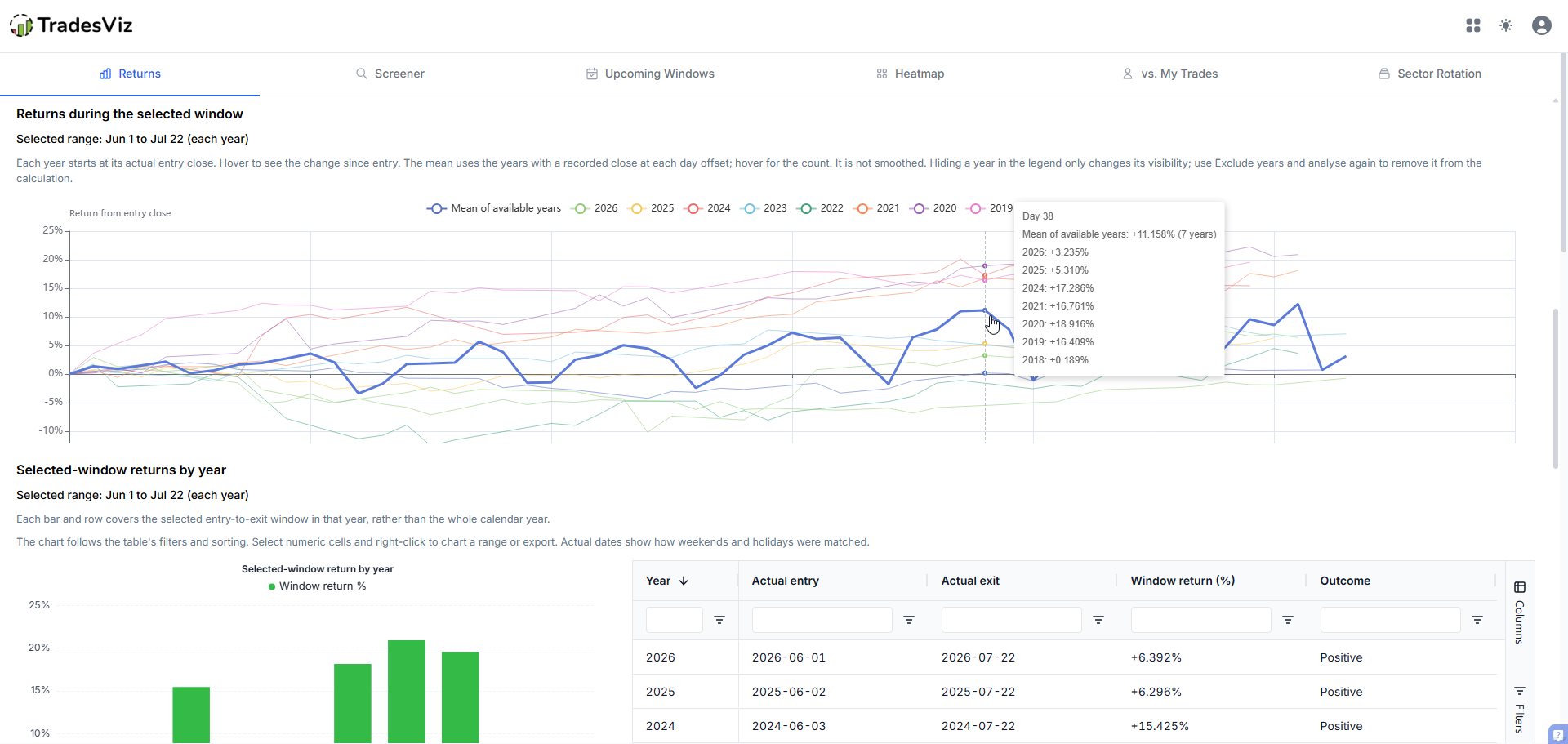
Clicking a year in the legend only hides its line. To remove a year from the calculation, enter it in Exclude years (YYYY), separating multiple years with commas, then select Analyse window. Keep a note of why you excluded it.
Compare the completed outcomes
The summary cards show positive years, mean return, median return, best year, worst year and standard deviation. Positive years is a count within the usable sample, not a probability of the next trade winning.
Selected-window returns by year places a yearly bar chart beside the grid, or above it on a narrow screen. Each bar covers the chosen entry-to-exit window in that year, not the whole calendar year. Green bars are positive completed returns; red bars are negative. Hover for the return and actual entry and exit dates. The grid contains the same outcomes and the exact trading sessions used.
Sorting or filtering the annual grid updates the bars. Those grid filters do not recalculate the summary cards or yearly paths. Use Exclude years and analyse again when you want to change the calculation itself.
Select numeric cells and right-click for Chart Range, or choose Export for CSV or Excel. Exported returns stay numeric: 3.4 means 3.4%.
Why can the mean line end at a different value from Mean return?
The summary's Mean return averages each usable year's final window return. The path chart averages recorded closes at each calendar-day offset. Actual entry and exit sessions can fall at different offsets across years, so the last point on the mean line may contain fewer years. Use the summary and annual grid to compare completed outcomes, and the path tooltip's count when comparing an intermediate day.
Use calendar returns for broader context
Below the window analysis are the yearly, quarterly, monthly and week-of-year charts and grids. Set the Calendar range at the top to choose the history. Return bars and the average-volume line describe each calendar grouping.
The two yearly charts answer different questions. Selected-window returns by year measures your chosen entry and exit in each year, such as October 2 to November 2. The calendar Year chart measures the first to last available close within each calendar year and the Calendar range. Its first and last years can be partial: a range starting in October 2021 only includes October onward for 2021. Changing the selected window does not change these calendar charts.
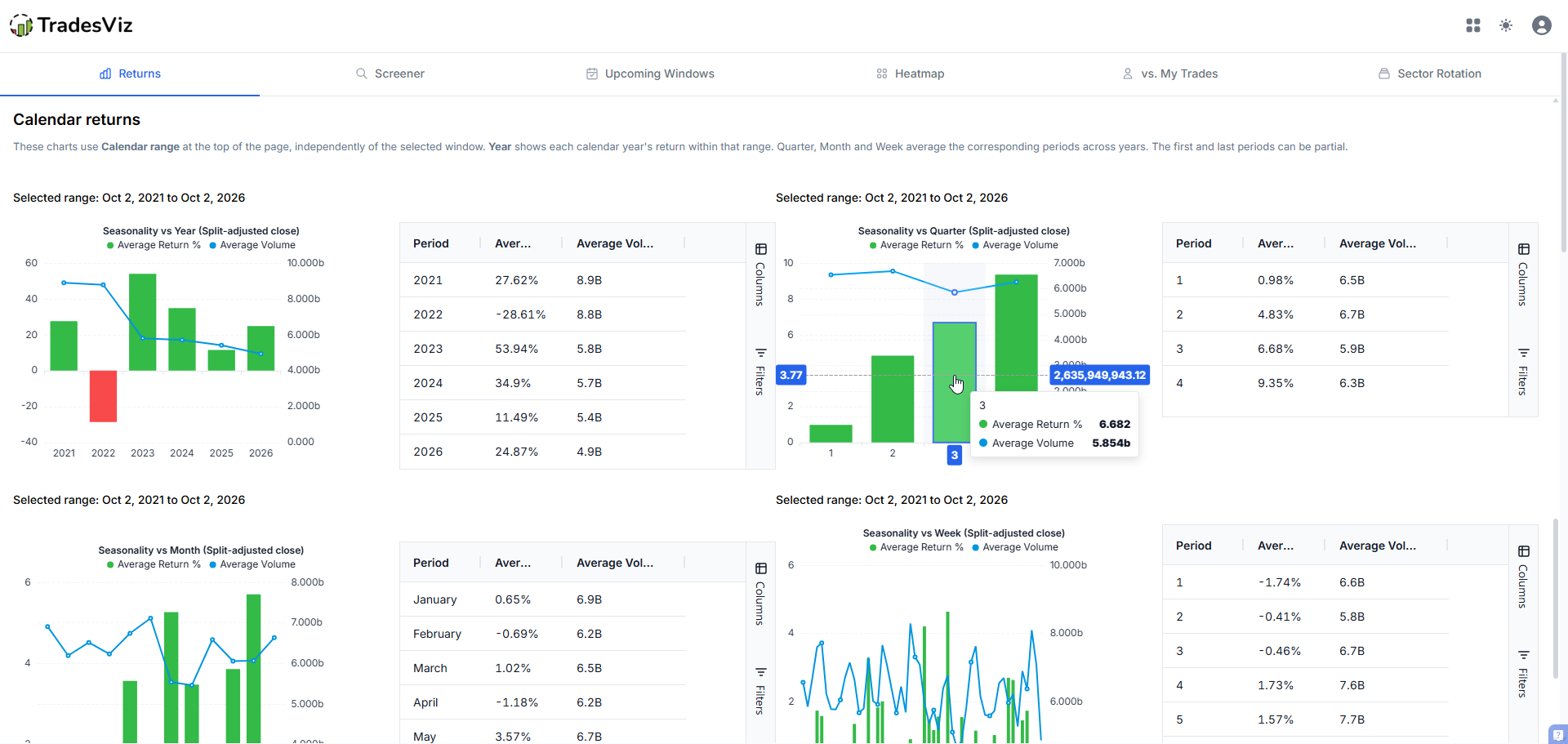
A monthly SPY chart can help you investigate whether October through December differed from the summer months in the selected history. Use Seasonal window to inspect an actual entry and exit. Adding average monthly returns is not the compounded return of a trade held across those months.
Earlier examples: comparing SPY lookbacks
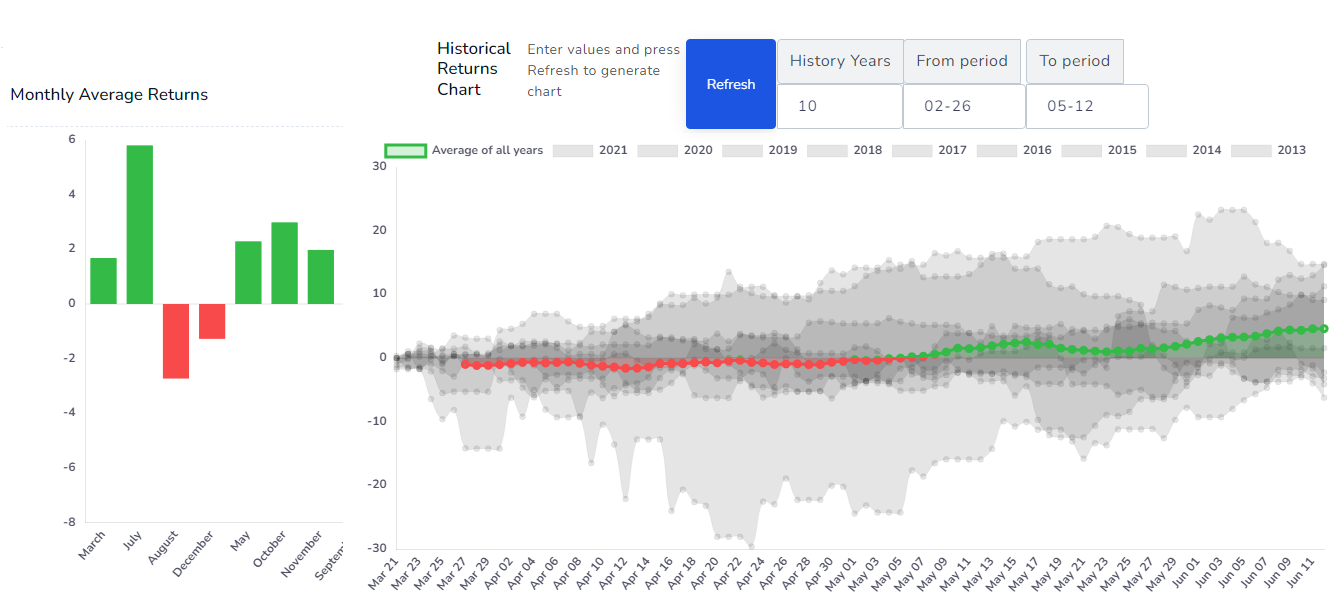
These screenshots are retained from the original 2022 article. They illustrate how changing the sample changes monthly averages; their interface and values are historical, not current results.
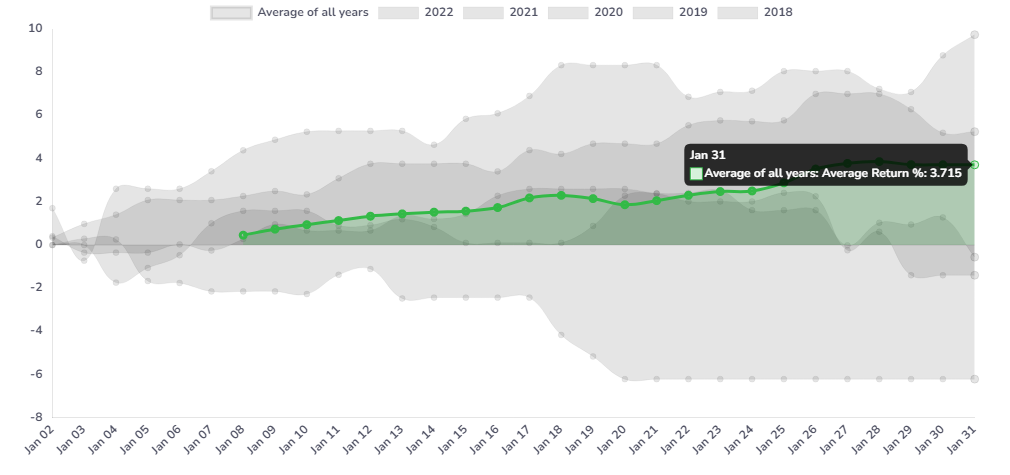
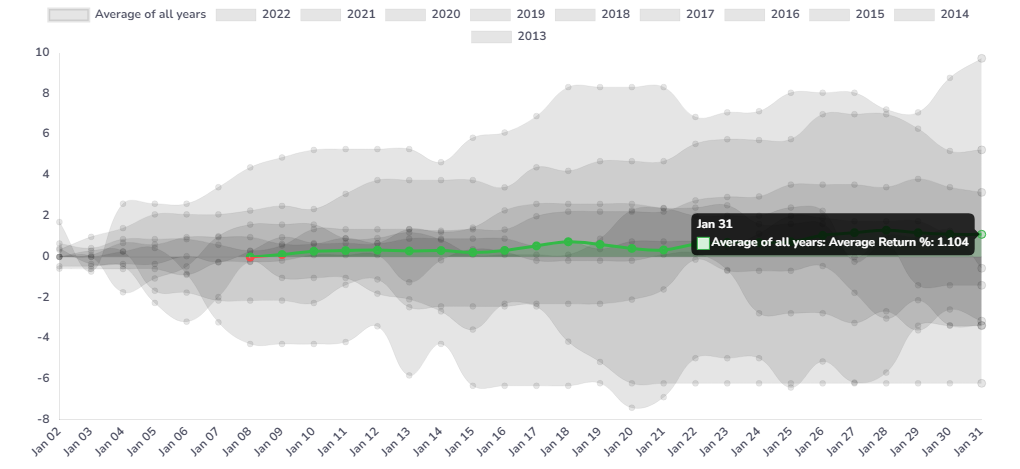
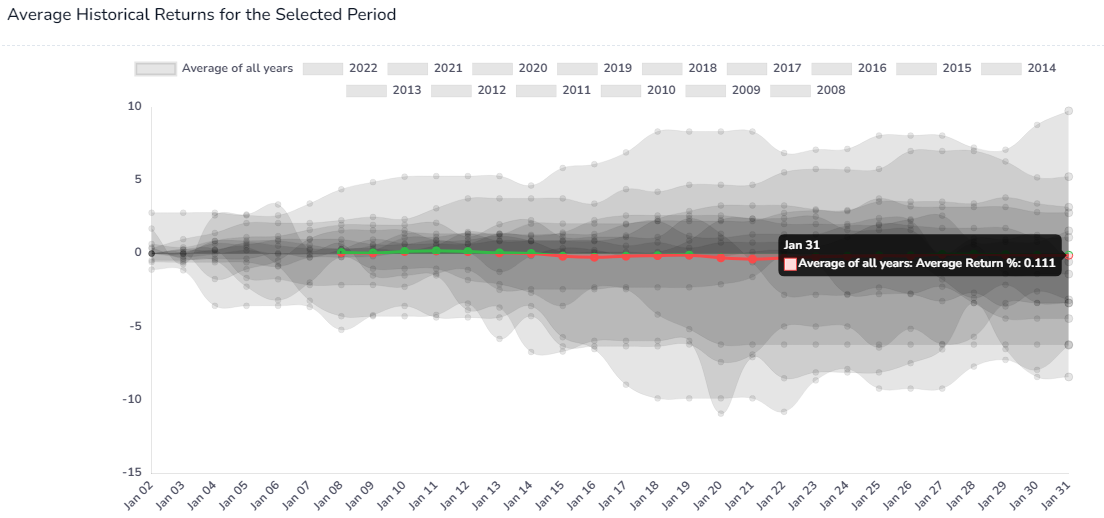
Compare the years behind each average instead of choosing only the lookback with the highest return. A saying such as "sell in May" is a question to test for your symbol and history, not an established trading rule.
Which prices and dates are used?
Seasonality uses split-adjusted end-of-day closing prices without dividend adjustments. Splits do not create mechanical gains or losses, and cash dividends are not added to returns. Missing adjusted closes are excluded rather than replaced with raw prices. There is no price-setting selector.
For an exact window, each month and day is mapped into its historical year. February 29 maps to February 28 in non-leap years. Each non-trading boundary moves forward to the first available session within seven calendar days. Only completed windows with valid entry and exit prices count. The status distinguishes usable, excluded and missing or incomplete years.
Calendar charts compare first and last closes within their calendar periods. Their dates can differ from a custom window, so a monthly average and an exact-date analysis need not match. These are underlying price returns without trading costs, not the profit of an options strategy.
Why might a stock be missing from a screener?
Returns analyses the symbol you select directly. Screener and Upcoming Windows first apply their own date choices, history, liquidity and options filters, then return a ranked subset. A stock can have usable history in Returns without qualifying for that list. Check the exact dates, lookback, filters and maximum results before comparing two screens.
Use the screener walkthrough for those controls, or follow the seasonal trading ideas guide for dated scans and rejected candidates. To combine long and short symbols, use Portfolio Seasonality. Record the chosen dates in your research notes, then use tags and vs. My Trades to review the trades you actually took.