In this post, we will explore how to pair your TradesViz account with Pionex.
Once you select your trading account and broker as "Pionex" in the trade auto-import page, a popup box will appear when you click on the "Connect account" button.
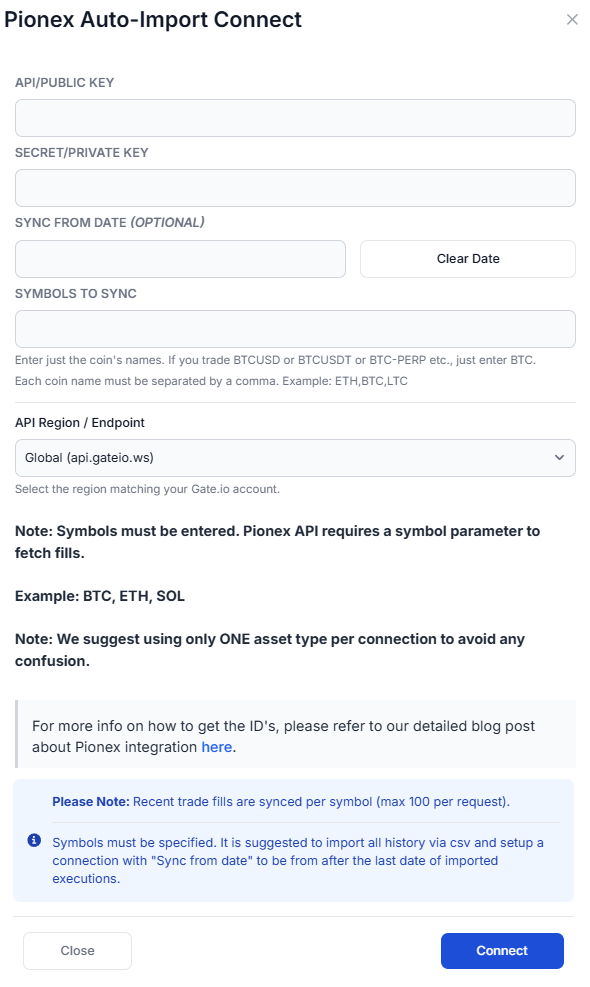
The purpose of this blog post is to guide you to get the API key and secret from the Pionex website. Here are the steps you need to follow:
- Log into your Pionex account at https://www.pionex.com
- Navigate to your account settings by clicking on your profile icon in the upper-right corner.
- Click on "API management" or go directly to https://www.pionex.com/en/apiManagement
- Click on "Create API Key"
- Make sure the API key has Read permission enabled. You do NOT need to enable any trading or withdrawal permissions.
- Complete any required verification (2FA, email, etc.).
- After the above step, you will see your API Key and Secret Key. Copy both immediately as the secret key will only be shown once.
- Enter the API key and the Secret key in the TradesViz connection page and click "Connect"
Important: You MUST enter the symbols you want to sync. Pionex API requires a symbol parameter to fetch trade fills. Enter just the base coin names separated by commas (e.g., BTC, ETH, SOL). TradesViz will automatically try common quote currencies (USDT, USDC, BTC, ETH) for each symbol you enter.
Note: This connection only gives us READ-ONLY permission to your account to access your trade fills. We do not have any other permissions. We do NOT have any trading/transfer of coins/assets permissions.
Note: Pionex API currently only supports spot transactions. Futures and margin trades are not available through their API at this time. If Pionex adds support for additional asset types in the future, we will update the integration accordingly.
Note: Pionex returns a maximum of 100 fills per API request. TradesViz will automatically paginate through your trade history, but for best results we recommend importing your full historical data via CSV first, then setting up the auto-sync connection with a "Sync from date" set to after the last date of your imported executions.
You will now be able to see trades like BTCUSDT, ETHUSDT, etc., in your TradesViz.com account tagged as Cryptocurrency with full charting support.
Please let us know if you have any questions or concerns about the Pionex auto-sync integration and also about our general Crypto asset type addition to TradesViz!